Share details and highlights of a particular item with your Livestream audience for a short time.
Spotlighting an item during your Livestream allows you to draw attendees’ attention to it and pique their interest. Just like the hosts of QVC share details and discuss the benefits of owning their products, you can share more information and encourage attendees to purchase or bid on yours.
You might want to spotlight an item when:
- An item is competitive, and you want to make it even more competitive
- Bids are low on a particular item, and you want to increase interest
- You want to boost Raffle entry sales by showing specific details about the prize
- You want to show off items available in your online Storefront
How do I spotlight an item during my Livestream?
- In the Livestream Studio, scroll down to Settings and select Spotlight item:

- Click on Select Item and choose the item you want to feature:
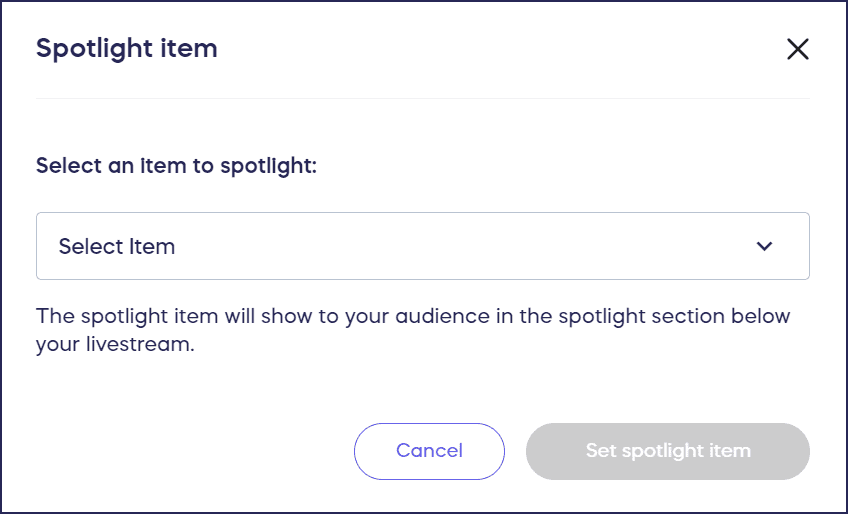
- Select Set spotlight item.
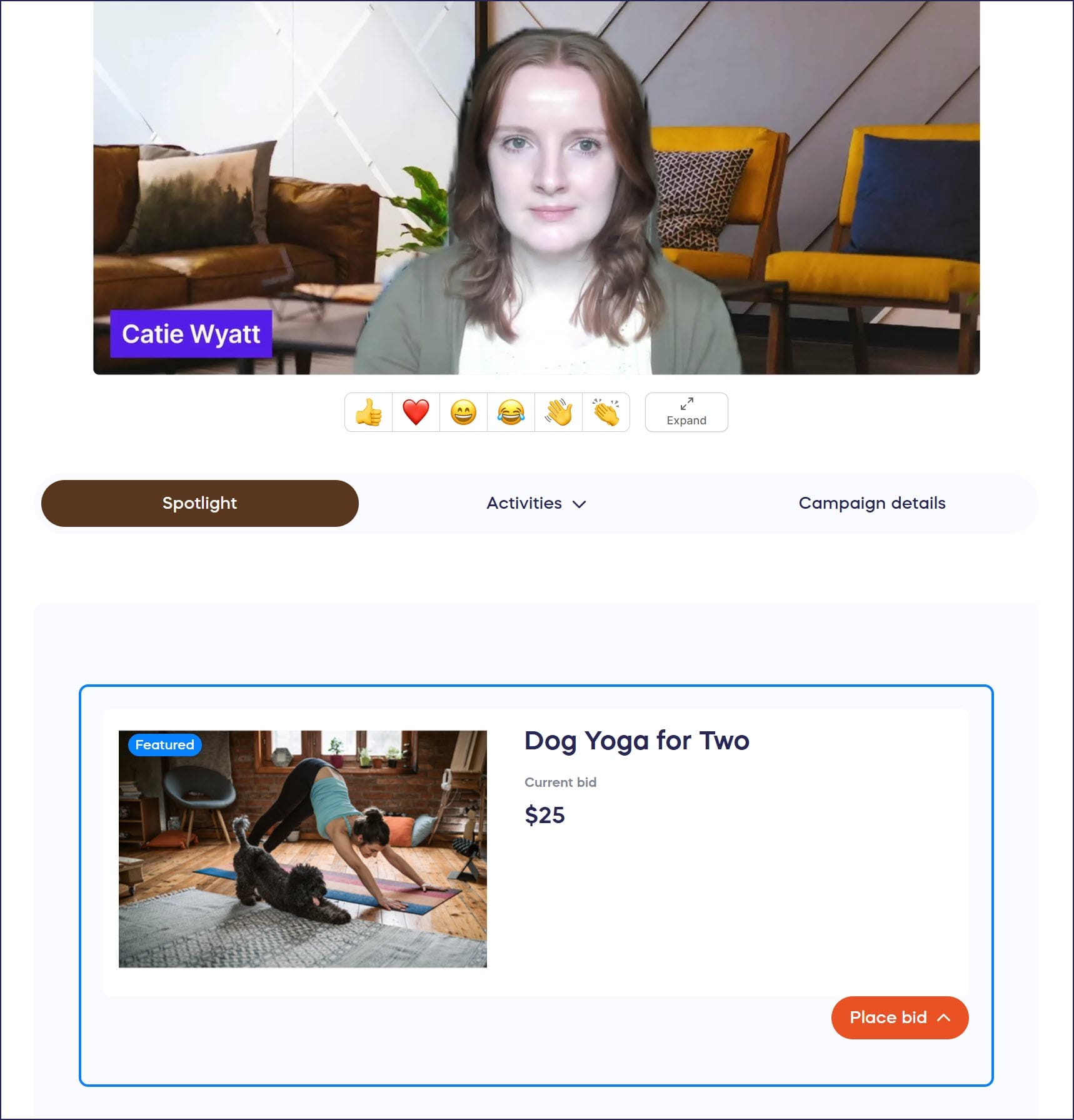
Once you spotlight an item, you’ll see a notification in your Activity Feed confirming that the item has been featured for your virtual audience. The spotlighted item immediately appears prominently on the Campaign Page for all viewers watching your Livestream:
What types of items can I spotlight?
You can spotlight any item from any of your fundraising Components, including:
- Auction items where you want to drive competitive bidding
- Raffle or Sweepstakes entry levels to showcase prizes and boost entry sales
- Storefront products to highlight merchandise details and features
- Event tickets or packages when promoting the event
- Crowdfunding Perks to encourage contributions
The spotlight feature works across all fundraising Components, not just traditional “items.” This versatility lets you strategically direct viewer attention to whatever needs momentum at any point during your Livestream.
How can I track spotlighted item activity during the Livestream?
The Livestream Studio provides real-time tracking of spotlighted item activity, helping you respond to viewer engagement dynamically. You can see how many items have sold or how many bids have been placed since spotlighting began. For limited-quantity items, the system displays remaining inventory so you can create urgency by announcing when items are nearly sold out. This information updates in real-time as viewers take action:
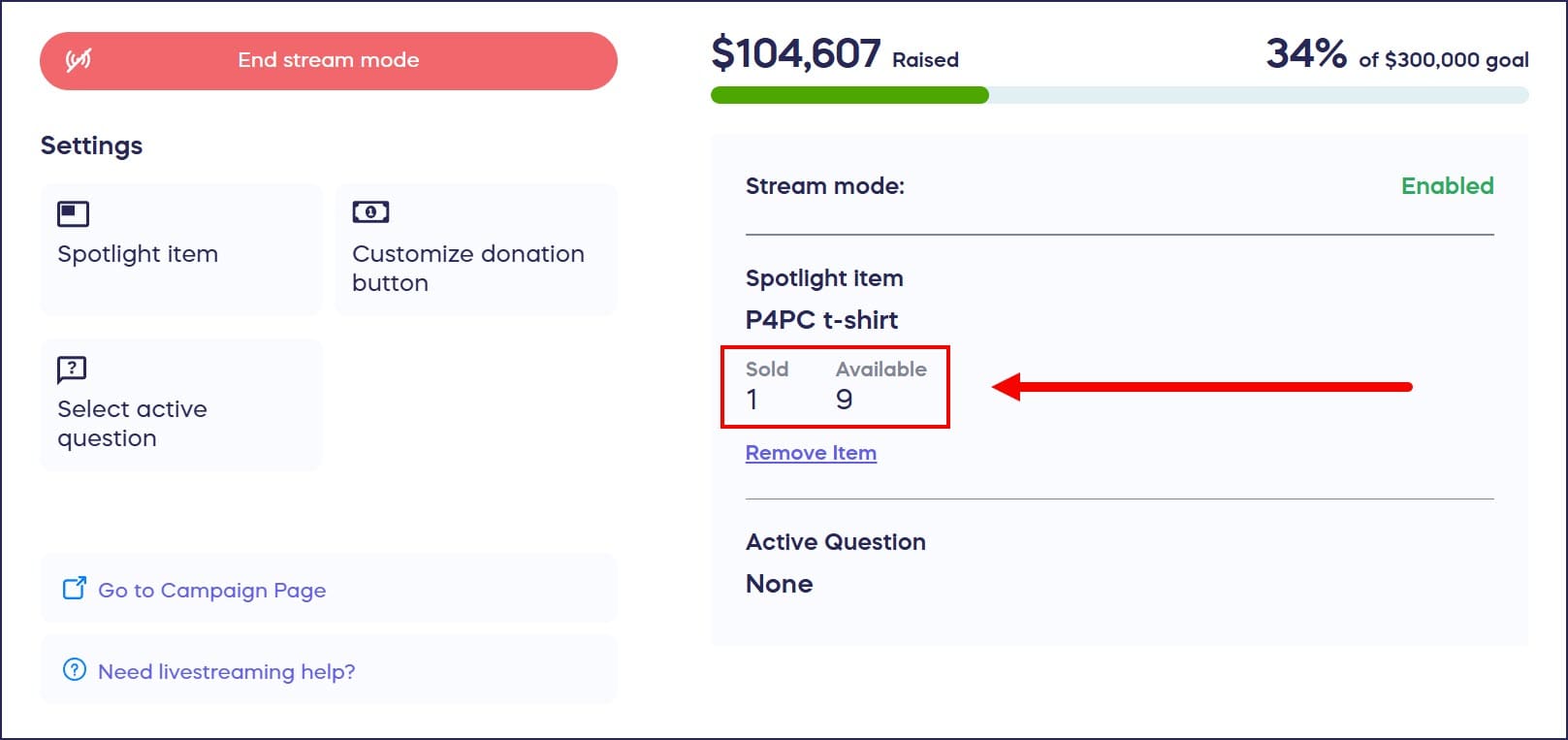
These live metrics let you adjust your presentation strategy, extend spotlight time on high-performing items, or switch focus to different items based on viewer response. Announcing real-time activity creates excitement and demonstrates social proof that encourages additional participation.
Frequently Asked Questions
How long does an item stay spotlighted?
Items remain spotlighted until you manually select a different item to spotlight or end the spotlight feature. There’s no automatic timer, giving you full control over spotlight duration. You might spotlight an item for just a few minutes while discussing it or keep it featured longer for ongoing promotions. Switch spotlights as often as needed throughout your Livestream to maintain viewer engagement and highlight different items.
Can I spotlight multiple items simultaneously?
No, you can only spotlight one item at a time. The spotlight feature is designed to create focused attention on a single item, which is more effective than dividing viewer attention across multiple items. However, you can quickly switch between items throughout your Livestream, creating a sequence of spotlighted items that keeps content fresh and maintains viewer interest.
Will spotlighting an item affect other Auction or Storefront items?
No, spotlighting an item doesn’t hide or disable other items in your Campaign. All Auction items, Storefront products, and other fundraising Components remain accessible to viewers through the regular Campaign Page navigation. The spotlight simply provides prominent featured placement for one item at a time while viewers can still browse and purchase other items independently. Think of it as creating a temporary “featured item” section rather than restricting access to anything else.
Do I need to announce when I spotlight an item or will viewers see it automatically?
Spotlighted items automatically appear prominently on the Campaign Page for all Livestream viewers without requiring any action from them. However, verbally announcing the spotlighted item during your broadcast maximizes its impact. Use the spotlight feature in combination with your presentation, explaining what you’ve featured, why viewers should be interested, and what action they should take. The visual spotlight combined with your verbal presentation creates the most effective engagement.
Can I prepare a spotlight sequence in advance?
The spotlight feature works in real-time during your Livestream, requiring manual selection of each item as you go. You cannot pre-program a sequence of spotlighted items to change automatically. However, you can create a planned spotlight strategy before your event, listing which items you’ll feature in what order and for approximately how long. This preparation helps you smoothly transition between spotlights during your live broadcast without long pauses while searching for the next item to feature.