Share your computer screen with your viewers while you Livestream.
RallyUp’s Share Screen tool is a feature that allows you to share your computer screen with viewers while you Livestream. This tool expands your presentation options and enables you to highlight key information for your donors using your browser screen or any desktop app, making it easier to showcase presentations, documents, videos, or other visual content during your fundraising event.
How do I share my screen during my Livestream?
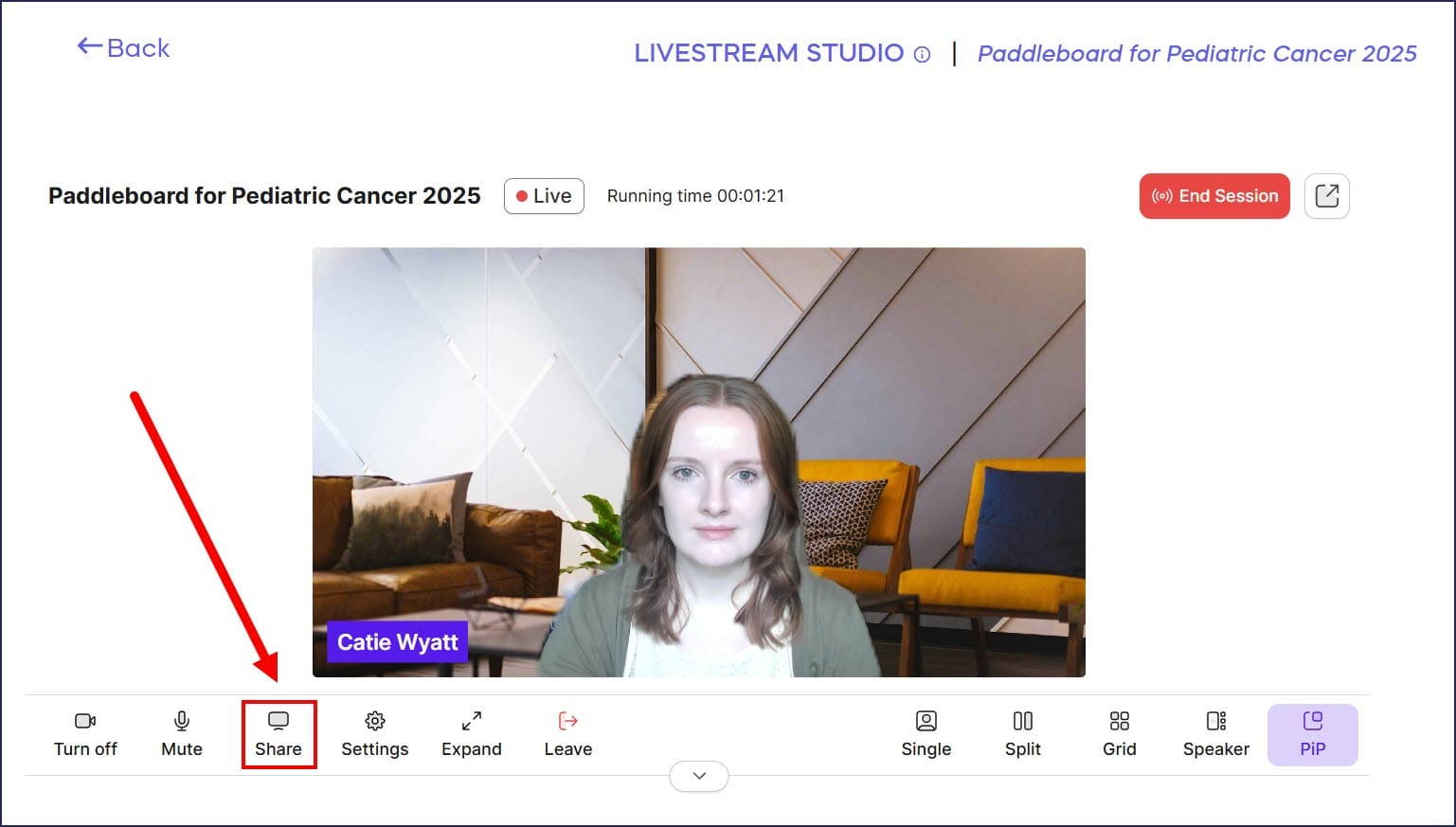
- Below the Livestream video feed, select Share:
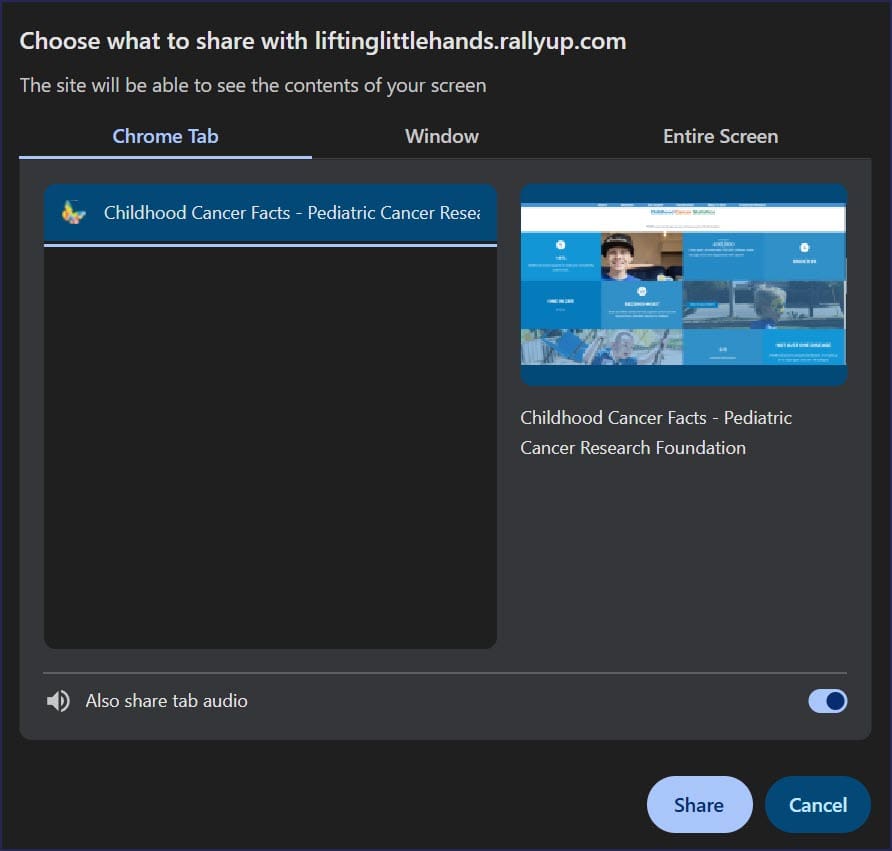
- Select a browser tab, computer window, or screen, then select Share:
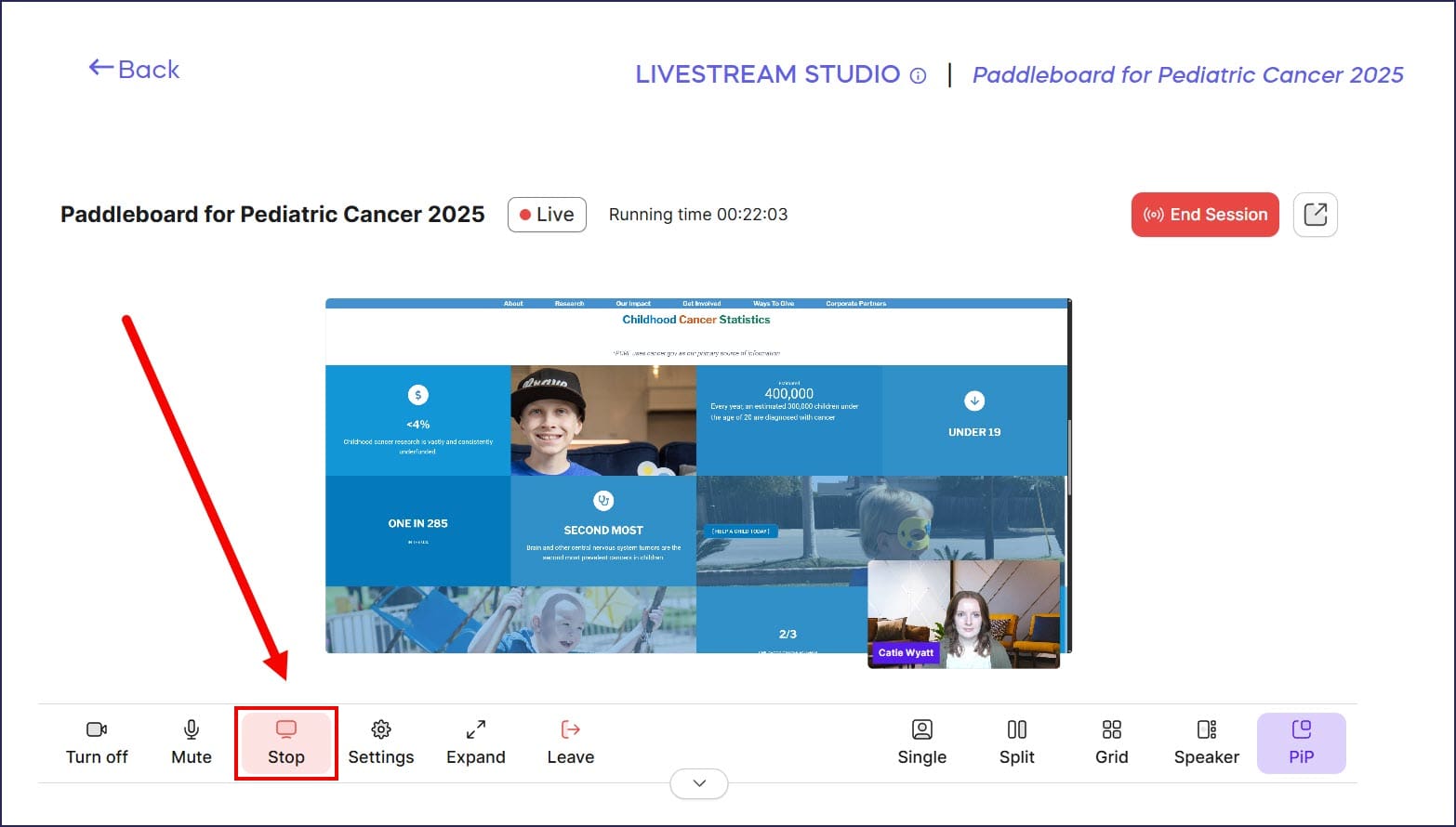
- When you’re done, select Stop:
What should I know about screensharing during a Livestream?
When using the Share Screen tool, keep these important points in mind:
- When you start your screenshare, your camera may default to “off.” If you want your audience to continue seeing your face during the screenshare, you may need to turn your camera back on.
- If you can’t share your screen on your Apple device, you may need to update your system preferences by following the instructions in this article: How-to: Allow Your Apple Device to Share Your Screen During a Livestream.
Frequently Asked Questions
What can I share when I use the Share Screen tool?
When you use the Share Screen tool during your Livestream, you can choose to share a specific browser tab, a computer window, or your entire screen. This flexibility allows you to control exactly what your viewers see, whether it’s a presentation, a document, a video, or any other content from your desktop apps or browser.
How do I stop screensharing during my Livestream?
To stop screensharing, simply select the Stop button that appears during your screenshare. This will end the screen sharing session and return your Livestream to its normal camera view. You can start and stop screensharing as many times as needed throughout your Livestream.
What happens to my camera when I start screensharing?
When you start your screenshare, your camera may default to “off.” If you want your audience to continue seeing your face during the screenshare, you may need to manually turn your camera back on. This allows you to appear alongside your shared content, creating a more engaging presentation experience for your viewers.
Why would I use screensharing during my Livestream?
Screensharing expands your presentation options and allows you to highlight key information for your donors in more dynamic ways. You can use it to showcase presentations, display fundraising progress charts, show videos or photos, walk through documents, demonstrate your organization’s website, or present any visual content that helps tell your story and engage donors more effectively during your fundraising event.
What if I can’t share my screen on my Apple device?
If you’re unable to share your screen on your Apple device, you may need to update your system preferences to grant the necessary permissions. Follow the step-by-step instructions in this Knowledge Base article: How-to: Allow Your Apple Device to Share Your Screen During a Livestream. This article will guide you through adjusting your device settings to enable screensharing.