Change the text on your Participant Center button to match your fundraiser.
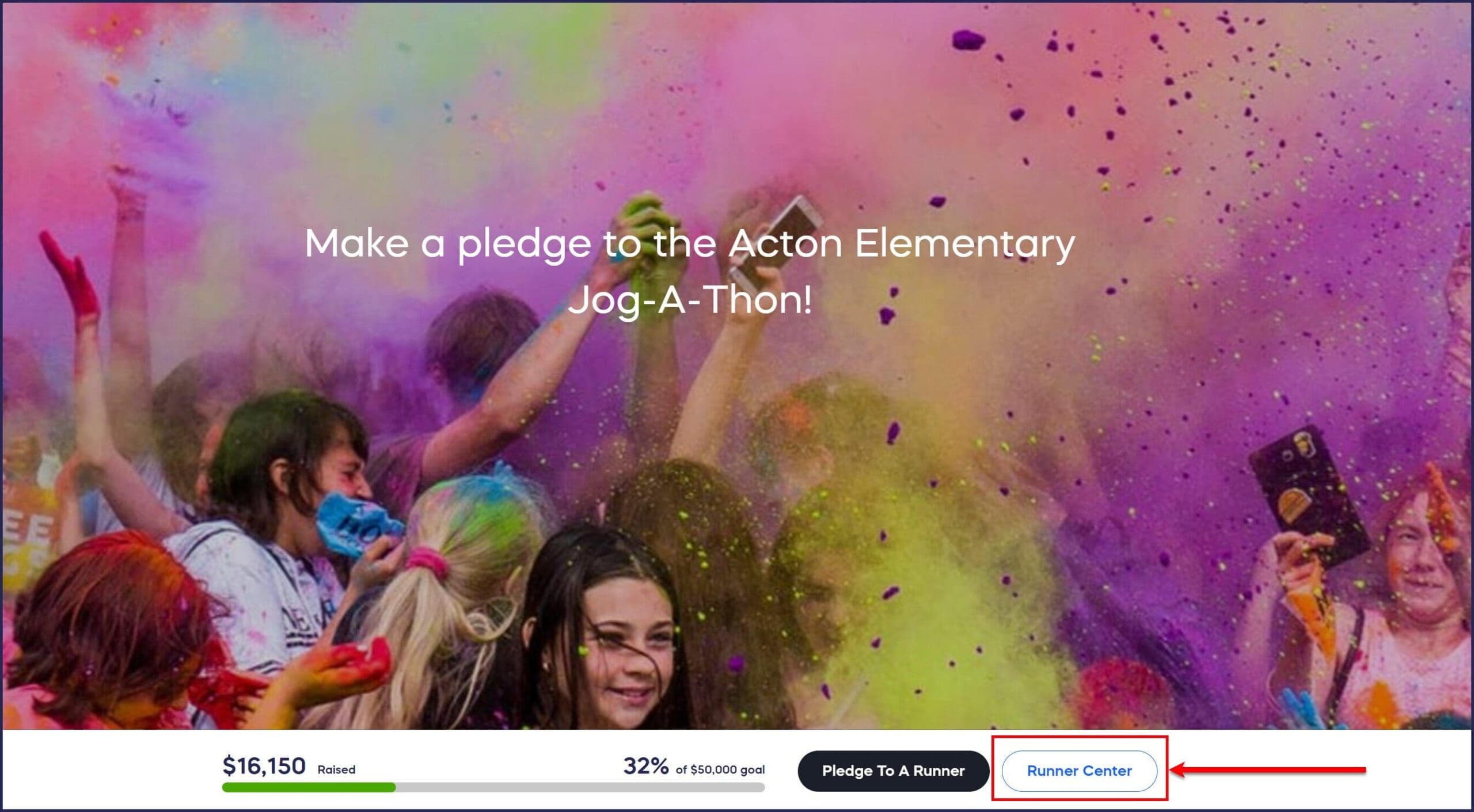
When you add Peer-to-Peer or an A-Thon to your RallyUp Campaign, you can add a Participant Center and display a button on the Campaign Page that takes supporters to the Participant Center. You can customize the generic term “Participant Center” on your fundraiser to better reflect your Campaign’s nature.
What is the Participant Center?
The Participant Center is a dedicated page where supporters can view all Participants and Teams, access leaderboards, and register to join your Peer-to-Peer or A-Thon Campaign. The Participant Center button appears on your Campaign Page and links directly to this hub of participant activity and engagement.
How do I customize the Participant Center button text?
- Go to Account Navigation in the left menu and select Campaigns.
- If you have chosen a list view, click on the Campaign title. If you have chosen a grid view, click on the Campaign image.
- Select Campaign Setup.
- Go to Participant Center in the timeline at the top and select Show optional settings.
- Scroll down to Do you want a Participant Center button added to your Campaign page? and select Yes.
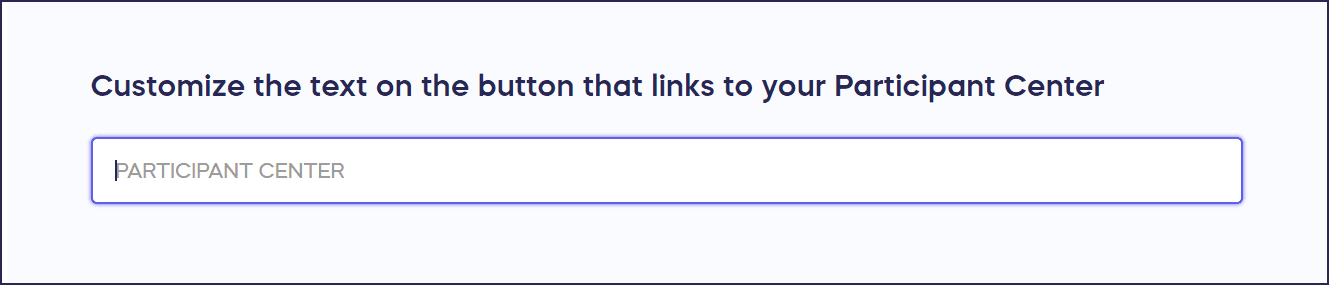
- Scroll down to Customize the text on the button that links to your Participant Center and enter the term you want to use:
- Select SAVE.
Frequently Asked Questions
Why should I customize my Participant Center button text?
Customizing the Participant Center button text helps match your Campaign’s specific theme or terminology. For example, you might rename it “Runner Hub” for a marathon, “Team Portal” for a corporate challenge, or “Student Dashboard” for a school fundraiser.
Can I hide the Participant Center button entirely?
Yes, you can choose not to display the Participant Center button on your Campaign Page by selecting “No” when asked “Do you want a Participant Center button added to your Campaign page?” Participants can still access the Participant Center through direct links.
Does changing the button text affect the Participant Center itself?
No, renaming the button only changes the text displayed on the button on your Campaign Page. The Participant Center page itself and its functionality remain the same, regardless of what you name the button.
What are some good examples of custom Participant Center names?
Popular alternatives include “Team Center,” “Fundraiser Hub,” “Participant Portal,” “Runner Dashboard,” “Student Center,” or event-specific names like “Walker Central” or “Cyclist Hub” that reflect your Campaign’s focus and audience.
Can I change the Participant Center button text after my Campaign is live?
Yes, you can update the Participant Center button text at any time, even after your Campaign has launched. Simply follow the same steps to access the customization settings and save your new button text.