Test drive your Campaign Pages before you go live.
Draft Mode allows you to preview your Campaigns and test out all the features before you begin fundraising. View your Campaign Page setup, make test transactions, and finalize all details before you go live.
What do I need to know before using Draft Mode?
- Please note that you won’t be able to accept real donations or payments until your Campaign goes live. When you go live, all test payments and test data will be removed from your records.
- We don’t recommend sharing your draft Campaign with donors before you go live, as they won’t be able to submit payments.
- If you’re using Stripe or PayPal to collect funds, go to your Stripe dashboard and turn on Test mode or create a sandbox PayPal account so you can view test transactions there too.
How do I view my Campaign in Draft Mode?
- Go to Account Navigation in the left menu and select Campaigns.
- Click on the draft Campaign you want to test, then select Campaign Setup. To create and test a new Campaign, select NEW CAMPAIGN.
- Select Test Campaign in the top right corner of the screen:

- You are now viewing your Campaign in Draft Mode. Campaigns in Draft Mode will have the following banner at the top of the page:

How do I run test transactions in Draft Mode?
- Go to Account Navigation in the left menu and select Campaigns, or go to Organization Settings in the left menu and select Donation Pages.
- Click on the draft Campaign or Donation Page you want to test, then select Campaign Setup or Donation Page Setup.
- Select Preview in the top right corner of the screen:

- While the page is in Draft Mode, complete a transaction, such as making a donation or placing a bid on an Auction item.
- Proceed to checkout. When you get to the Please enter your card information step, test card numbers will autofill:
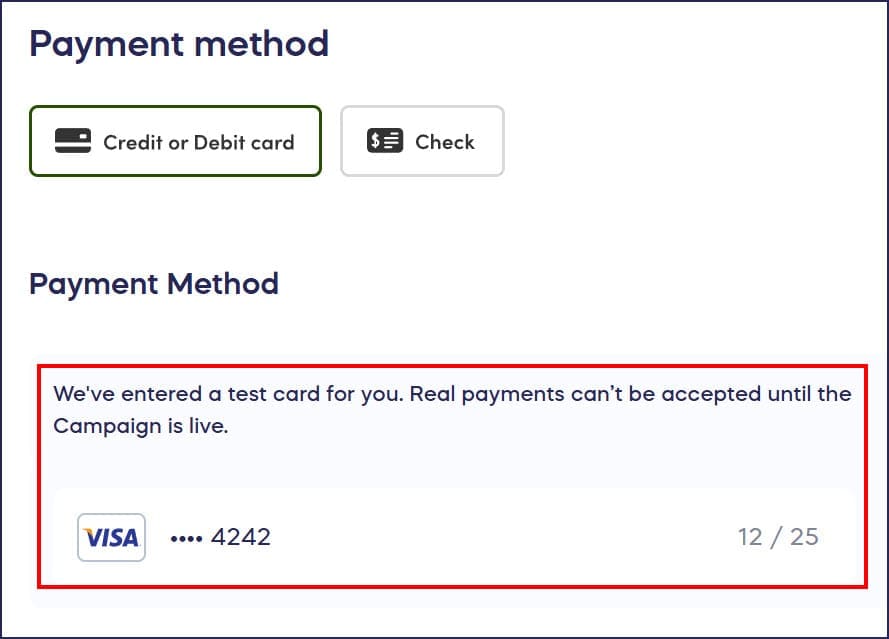
You won’t be able to accept real payments until your Campaign goes live.
- Select the Pay button to complete the test transaction. You’ll receive a test receipt, and the transaction will appear in test reports. Note that all test data will be deleted when you go live.
What are the limitations of Draft Mode?
- You can preview your Campaign as many times as you like, but once you go live, you won’t be able to go back to Draft Mode again.
- At this time, you can only run card transactions in Draft Mode. You won’t be able to simulate a donor using a check or their PayPal, Google Pay, or Apple Pay account to donate.
Related articles about Campaign preview and setup
How-to: Show Someone Your Campaign Before It Starts
Frequently Asked Questions
Can I accept real donations while my Campaign is in Draft Mode?
No, you cannot accept real donations or payments in Draft Mode. All transactions are test payments only, and any test data will be removed when you go live with your Campaign.
Can I go back to Draft Mode after launching my Campaign?
No, once you launch your Campaign and it goes live, you cannot return to Draft Mode. Make sure to thoroughly test all features and settings before going live.
What payment methods can I test in Draft Mode?
You can only test card transactions in Draft Mode. PayPal, Google Pay, Apple Pay, and check donations cannot be simulated during testing. Test card numbers will automatically populate during checkout.
Will test transactions appear in my Campaign reports?
Yes, test transactions will appear in your reports while in Draft Mode. However, all test data and test payments will be automatically deleted from your records when you launch your Campaign.
Should I share my draft Campaign with donors before going live?
No, we don’t recommend sharing your draft Campaign with donors before launch. Since they won’t be able to submit real payments in Draft Mode, this could create confusion and a poor donor experience.