Send emails to individuals asking them to join your team and raise funds together.
If you’re participating in a Peer-to-Peer fundraiser and you’ve created a Team, you may be able to invite others to join your Team so you can fundraise together. There are two ways to invite new Team members:
- During registration
- From your RallyUp account after the Team has been registered
What permissions do I need to invite Team members?
Your ability to invite others to join your Team will depend on how the Campaign Organizer has set up the fundraiser. If you’re not sure, double-check with the Campaign Organizer by selecting the Contact Organizer button in the bottom right corner of your screen.
How do I invite people to my Team during registration?
- During registration, you’ll see a field that says Invite people to join your team (optional):

- Select Invite more.
- Enter the email address of the person you want to invite, then select Save:
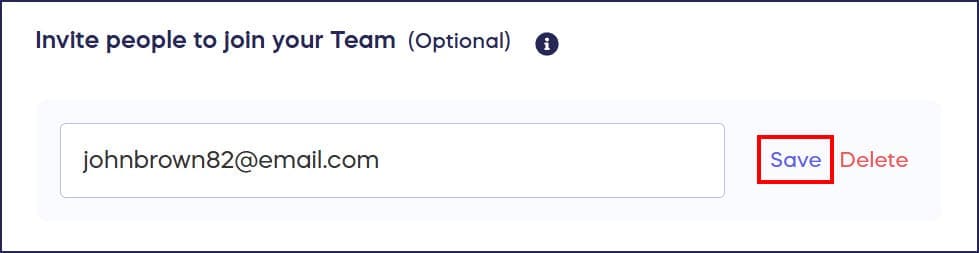
You can invite as many people as you like. Invitation emails will be sent out after you finish registering your Team. If they click on the link in the email to register, they’ll be automatically assigned to your Team.
Please note that if the Campaign Organizer has set limits on how many people can join a Team, then only a certain number of people will be able to accept invitations to join your Team.
How do I invite people to my Team after registration?
- Go to rallyup.com and log into your account with the email address you used to register the Team.
- Click on the circle with your initials in the upper right corner of the screen, then select My Account.
- Go to the My Teams tab and click on the Team name to bring up the Team Dashboard.
- Go to the Participants tab and select INVITE PARTICIPANT:

- Enter the email addresses of the people you want to invite, then select Invite:
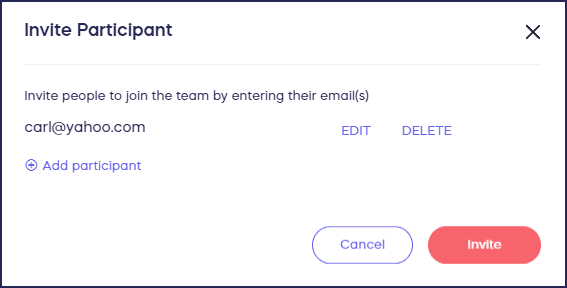
If they click on the link in the email to register, they’ll be automatically assigned to your Team.
How can I see who has accepted my Team invitations?
You can see who has accepted the invitation and joined your Team through your Team Dashboard:
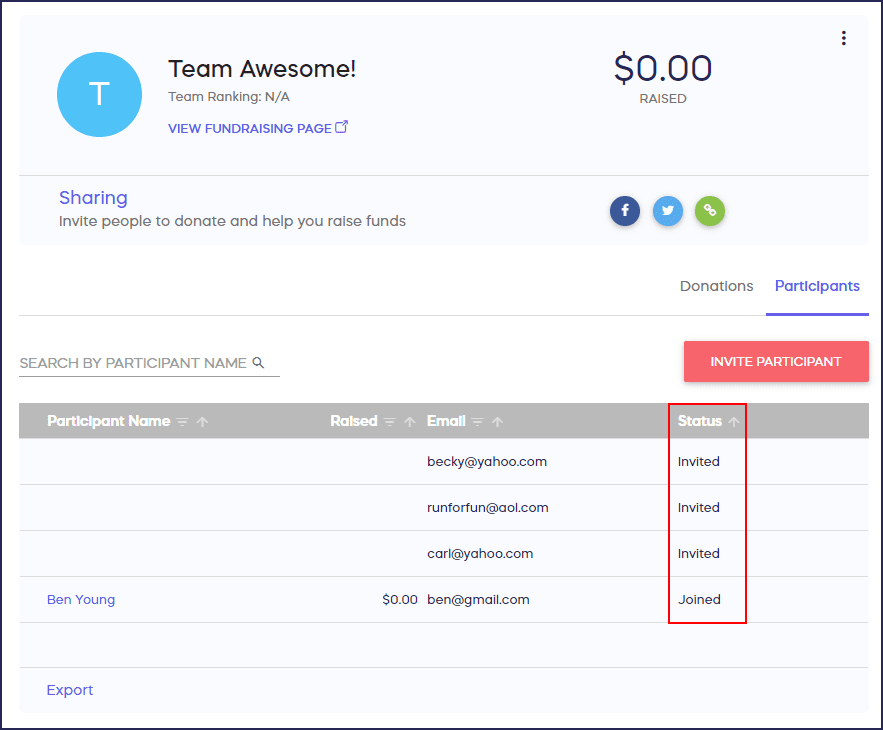
- Invited: This person was invited but hasn’t accepted the invitation yet.
- Joined: This person accepted the invite and joined your Team.
How do I resend a Team invitation?
It’s possible that some of the people you invited previously may be unable to find the original email invite. You can resend an invite anytime through your Team Dashboard:
- Hover over the person’s name and click on the three-dot icon on the right.
- Select Resend Invite:

A green box will appear above the list of names to let you know that the email was re-sent successfully:

What should I know about Team Fundraising Pages?
- Each Team might receive a Team Fundraising Page that can be shared on social media or sent to family and friends. If you’re not sure whether you have a Team Fundraising Page, reach out to the Campaign Organizer.
- The person who created the Team and the Campaign Organizer can access and update the Team Fundraising Page: How-to: Edit Peer-to-Peer and A-Thon Fundraising Pages.
Frequently Asked Questions
Can I invite people to join my Team after I’ve already registered?
Yes, you can invite people both during registration and after your Team has been registered. Access your Team Dashboard through the My Teams tab in your account to send additional invitations at any time.
What happens when someone accepts my Team invitation?
When someone clicks the link in the invitation email and completes registration, they’re automatically assigned to your Team. You can see their status change from “Invited” to “Joined” in your Team Dashboard.
How many people can I invite to join my Team?
You can invite as many people as you like to join your Team. Simply add multiple email addresses during registration or send additional invitations later through your Team Dashboard. If the Campaign Organizer has set limits on how many people can join a Team, then only a certain number of people will be able to accept invitations to join your Team.
What if someone didn’t receive my Team invitation email?
You can resend invitations anytime through your Team Dashboard. Hover over the person’s name, click the three-dot icon, and select Resend Invite. A confirmation message will appear when the email is successfully resent.
Can I invite people if the Campaign Organizer disabled this feature?
Your ability to invite Team members depends on how the Campaign Organizer configured the fundraiser settings. If you’re unsure whether invitations are enabled, contact the Campaign Organizer using the button in the bottom right corner of your screen.