Update your browser permissions to enable livestreaming.
Before you can begin your Livestream, you’ll need to give your browser permission to use your microphone and camera. This is a security feature built into modern web browsers that protects your privacy by requiring explicit approval before websites can access your device’s audio and video hardware.
The permission process varies slightly depending on which browser you’re using, but it only takes a few clicks to enable. We recommend using Chrome for the best Livestream experience, but other browsers like Firefox and Microsoft Edge also work well. Safari is not recommended for RallyUp Livestreaming due to compatibility limitations.
How do I grant Chrome access to my microphone and camera?
Chrome is the preferred browser for RallyUp Livestreaming and offers the most reliable performance. To enable microphone and camera access in Chrome:
- Go to Account Navigation in the left menu and select Campaigns.
- If you have chosen a list view, click on the Campaign title. If you have chosen a grid view, click on the Campaign image.
- Select Livestream Studio.
- Click on the lock symbol in your address bar, which will bring up the permissions window.
- Click on the toggles next to Camera and Microphone to shift them to the right, which will update your permissions:
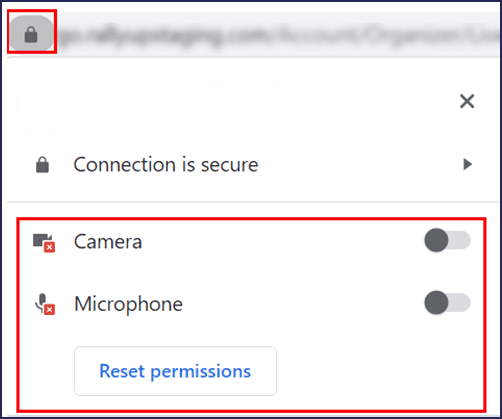
Once you’ve updated your permissions settings, you may need to refresh your browser for the changes to take effect.
How do I grant Firefox or Edge access to my microphone and camera?
Firefox and Microsoft Edge use a slightly different permissions process than Chrome. When you first access the Livestream Studio, these browsers automatically display a permissions pop-up:
- Go to Account Navigation in the left menu and select Campaigns.
- If you have chosen a list view, click on the Campaign title. If you have chosen a grid view, click on the Campaign image.
- Select Livestream Studio.
- A permissions pop-up should automatically appear on the left side of your screen.
- Select Allow to update your permissions:

If you accidentally dismissed the permissions pop-up without selecting an answer, just refresh your browser and the pop-up should reappear. If you accidentally blocked permissions to your microphone or camera, click on the lock icon (Chrome or Edge) or the camera/microphone icon (Firefox) in your address bar to access the permissions settings:

This should bring the permissions menu back and allow you to change your settings.
Frequently Asked Questions
Why does my browser need access to my microphone and camera?
Web browsers require explicit permission to access your device’s microphone and camera as a security and privacy measure. This prevents websites from recording audio or video without your knowledge. RallyUp Livestream needs these permissions to capture your audio and video feed and broadcast it to your audience during fundraising events.
What should I do if the permissions pop-up doesn’t appear?
If the permissions pop-up doesn’t appear automatically, check if you previously blocked permissions for RallyUp. Click the lock icon (or camera/microphone icon) in your browser’s address bar to review and change your permissions settings. You may also need to clear your browser cache and cookies, then try accessing the Livestream Studio again.
Can I test my camera and microphone before going live?
Yes, when you enter the Livestream Studio, you’ll see a preview of your camera feed and can test your audio levels before joining the stage. This green room area allows you to verify that your browser permissions are working correctly and make any necessary adjustments to your setup before your audience sees you.
Do I need to grant permissions every time I livestream?
No, once you grant permissions and select “Allow,” your browser will remember this choice for future sessions on RallyUp. You won’t need to approve access again unless you clear your browser data, change browsers, or manually revoke the permissions. Your permission settings persist across different Campaigns and Livestream events.
Why isn’t Safari recommended for Livestreaming?
Safari has limitations and compatibility issues with RallyUp’s Livestream technology that can result in poor audio quality, dropped connections, or features not working properly. Chrome, Firefox, and Edge have better WebRTC support, which is the technology that powers Livestream video and audio. For the most reliable Livestream experience, use Chrome as your primary browser.
What happens if I block permissions by accident?
If you accidentally block microphone or camera permissions, you can easily reverse this decision. Click the lock icon in your browser’s address bar, locate the microphone and camera permissions, and change them from “Block” to “Allow.” After updating the permissions, refresh the Livestream Studio page to apply the changes. Your camera and microphone should then work correctly.
Will granting permissions affect my privacy?
Granting permissions only allows RallyUp to access your camera and microphone when you’re actively using the Livestream Studio. The permissions don’t allow RallyUp to record or monitor you at other times. You can revoke these permissions at any time through your browser settings. Modern browsers also show indicators (like a camera or microphone icon) when these devices are actively in use, providing transparency about when recording is happening.