Edit the link to a Personal or Team Fundraising Page so it’s easier to remember and share.
When you enable Peer-to-Peer or an A-Thon on a RallyUp Campaign, you can also enable Personal Fundraising Pages for your Participants* and Teams* for them to share with friends and family to spread the word about your fundraiser and receive donations. Participants can customize the links to their Personal Fundraising Pages so they’re easier to share with donors.
*Terminology may differ according to Campaign settings.
How do Participants customize their Fundraising Page link?
Can I customize my link during registration?
You can update your Personal Fundraising Page link during the registration process:
- Scroll down to Personalize the link to this Participant’s fundraising page (optional).
- Enter a short keyword or phrase on the text line. We suggest using a word or phrase that’s easy to remember and incorporates the name you used to register:

- Select SAVE.
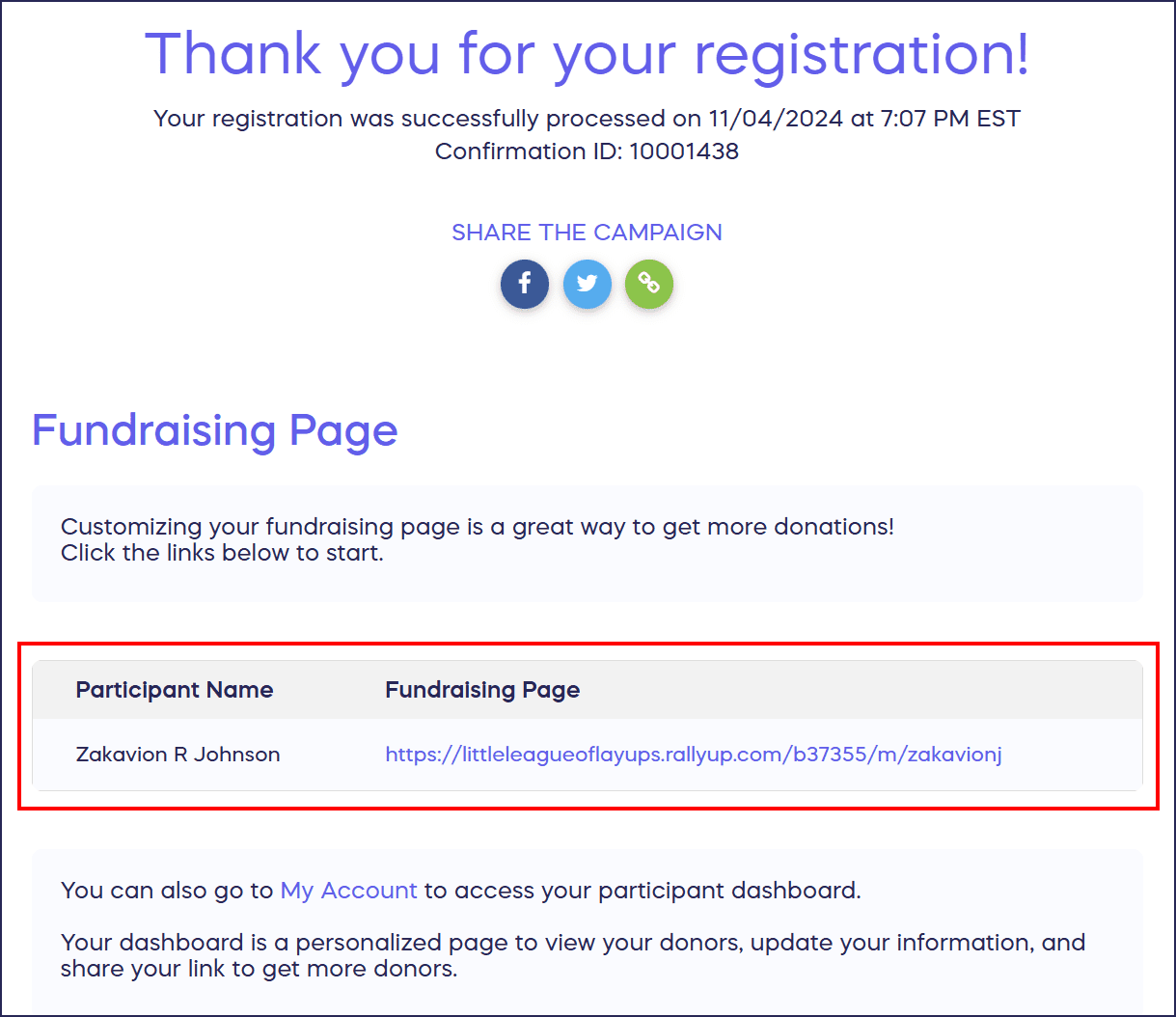
When you’ve completed registration, you’ll receive a confirmation email with your customized link:
How do I customize my link after registration?
You can also create a custom link later, after you’ve already registered:
- Go to rallyup.com and log in or create your account using the same email address you used to register.
- Click on the circle with your initials in the upper right corner of your screen, then select My Account.
- Select the My Participants tab.
- Hover your mouse over the line with your name and click on the 3-dot icon that will appear on the far right:
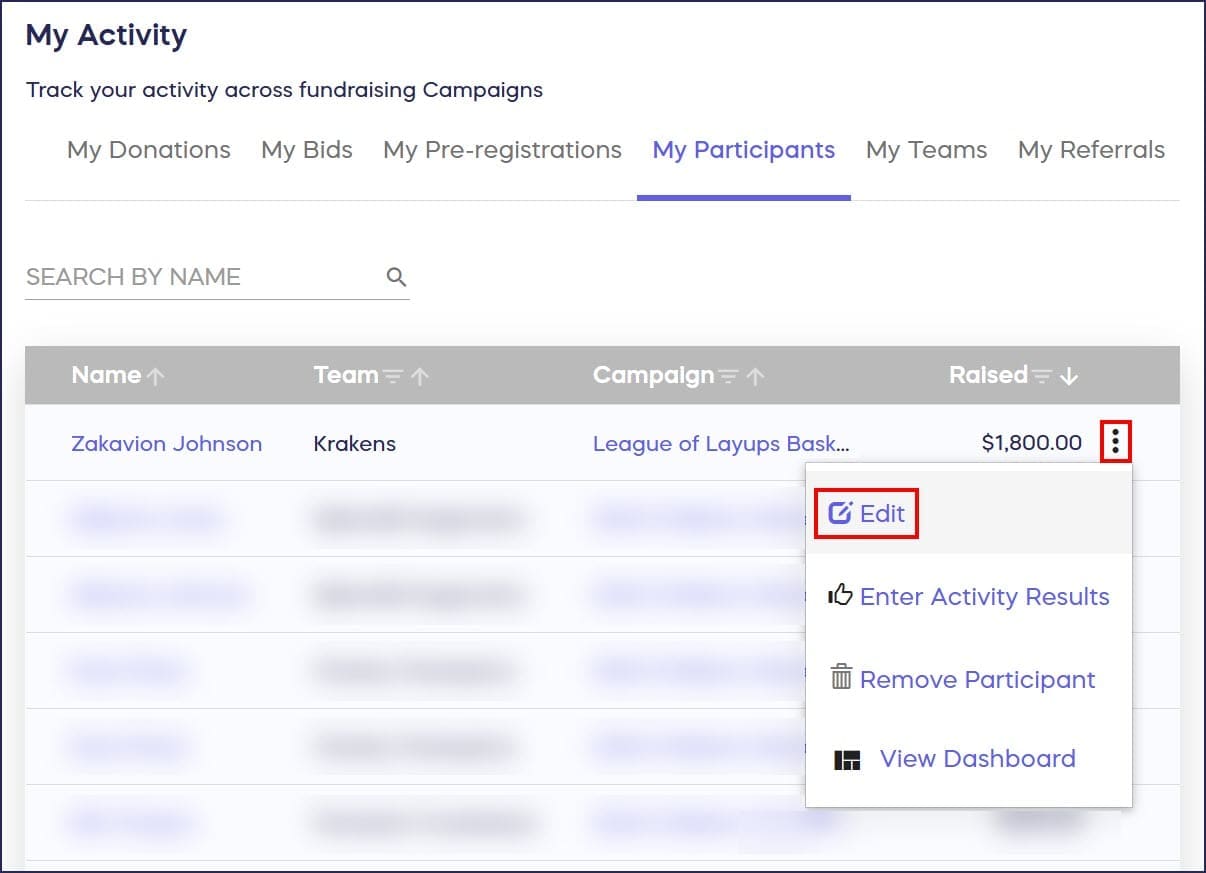
- Select Edit.
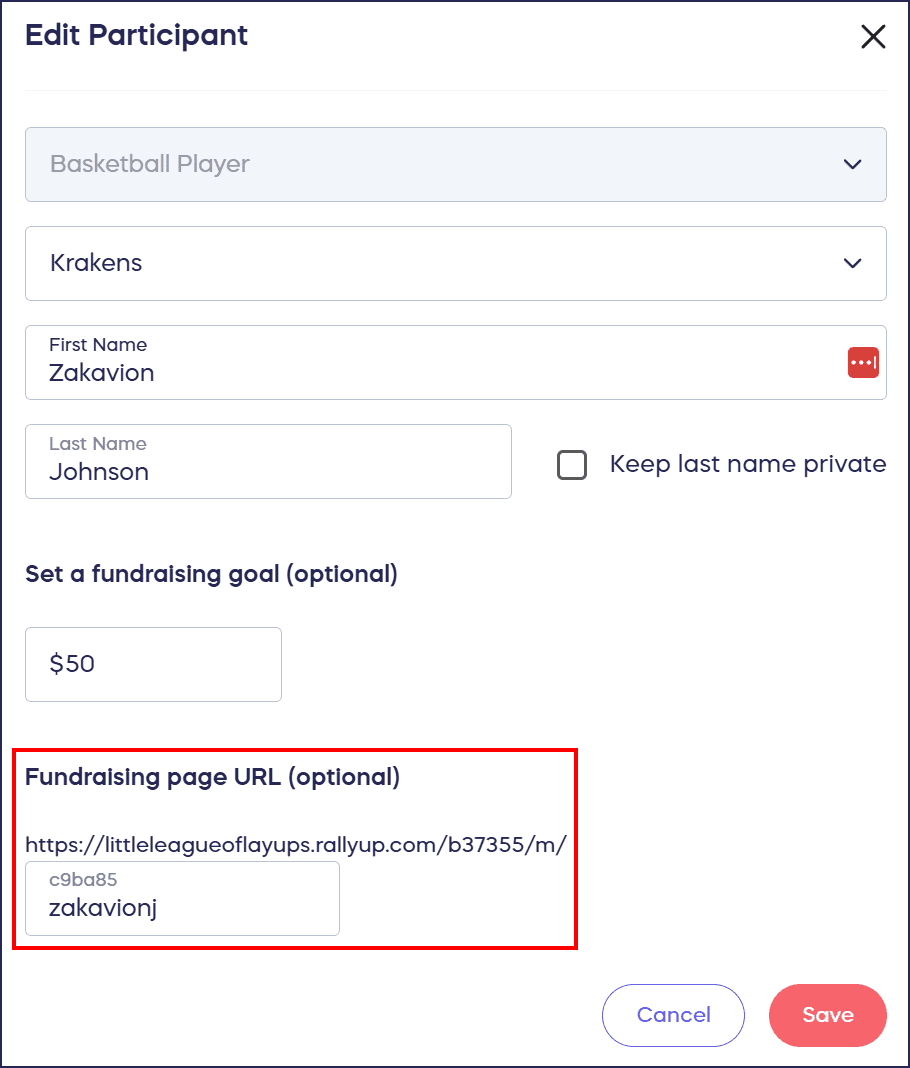
- Scroll down to Fundraising page URL (optional) and enter a short keyword or phrase on the text line. We suggest using a word or phrase that’s easy to remember and incorporates the name you used to register:
- Select SAVE.
How do organizers customize Participant Fundraising Page links?
- Go to Account Navigation in the left menu and select Campaigns.
- If you have chosen a list view, click on the Campaign title. If you have chosen a grid view, click on the Campaign image.
- Select View Participants or View Teams, depending on what type of link you are editing.
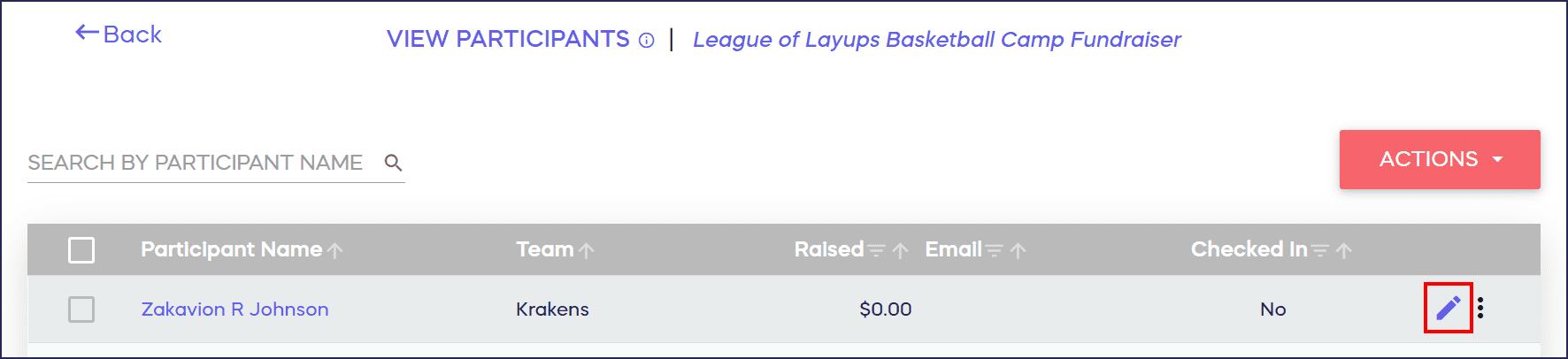
- Hover your mouse over the Participant or Team you are looking for and click on the pencil icon that will appear on the far right:
- Scroll down to Fundraising page URL (optional) and enter a short keyword or phrase on the text line. We suggest using a word or phrase that’s easy to remember and incorporates the name the Participant used to register:
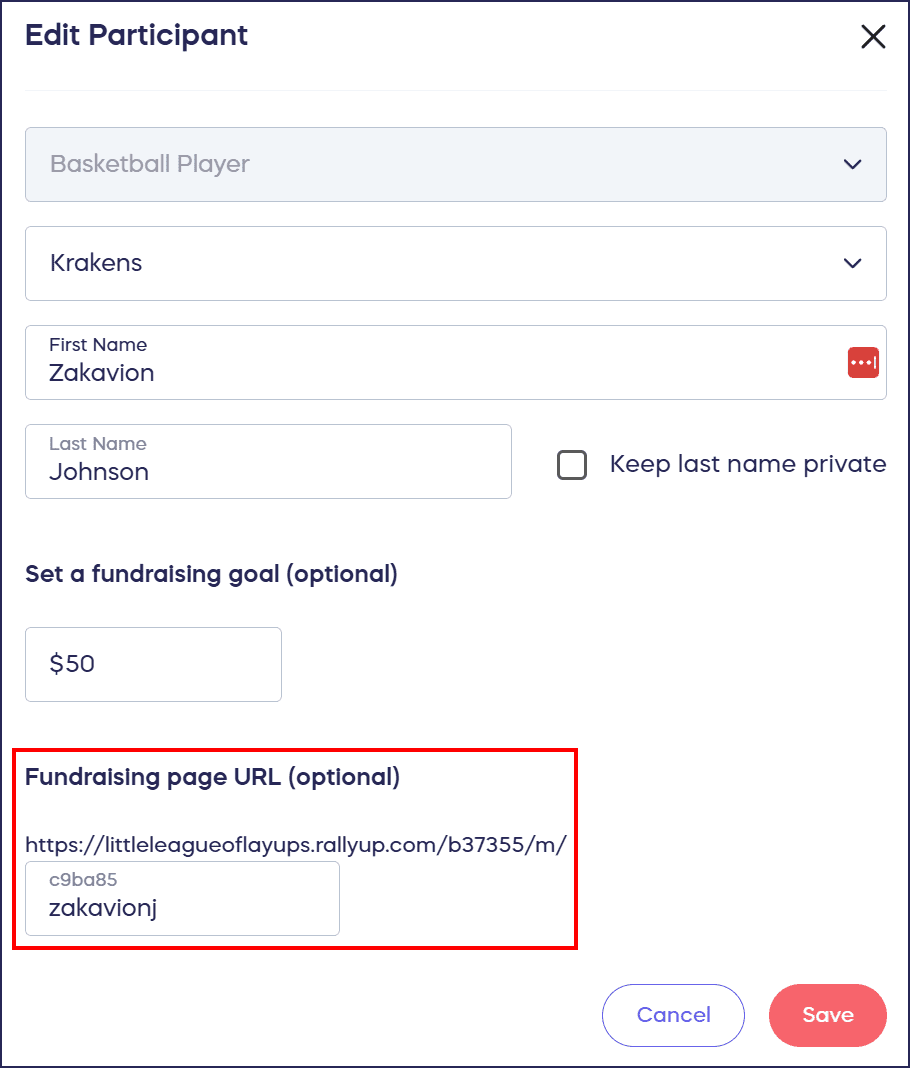
- Select Save.
Can Participants still use the original links to their Fundraising Pages?
- If a Participant or Team doesn’t customize the link to their Personal Fundraising Page, they can use the default randomly generated link instead.
- The original randomly generated link will still work even if a Participant or Team customizes their link, so both can be shared with supporters.
Frequently Asked Questions
When can I customize my Personal Fundraising Page link?
You can customize your link during the initial registration process or later from your RallyUp account. Both methods allow you to create a memorable, easy-to-share URL for your Fundraising Page.
Do I need a RallyUp account to customize my Fundraising Page link?
Yes, to customize your link after registration, you need to log into your RallyUp account using the same email address you used to register. You can create an account if you don’t already have one.
Will my old link still work after I customize it?
Yes, the original randomly generated link will continue to work even after you create a custom link. You can share both links with supporters and they’ll both direct people to your Personal Fundraising Page.
Can Campaign organizers customize Participant links for them?
Yes, Campaign organizers can customize Fundraising Page links for any Participant or Team by going to View Participants or View Teams and editing the Participant’s information to add a custom URL.
What should I include in my custom Fundraising Page link?
We recommend using a short keyword or phrase that’s easy to remember and incorporates your name or team name. Keep it simple, memorable, and relevant to help supporters easily find and share your page.