Customize your Campaign Page header to match your organization’s brand.
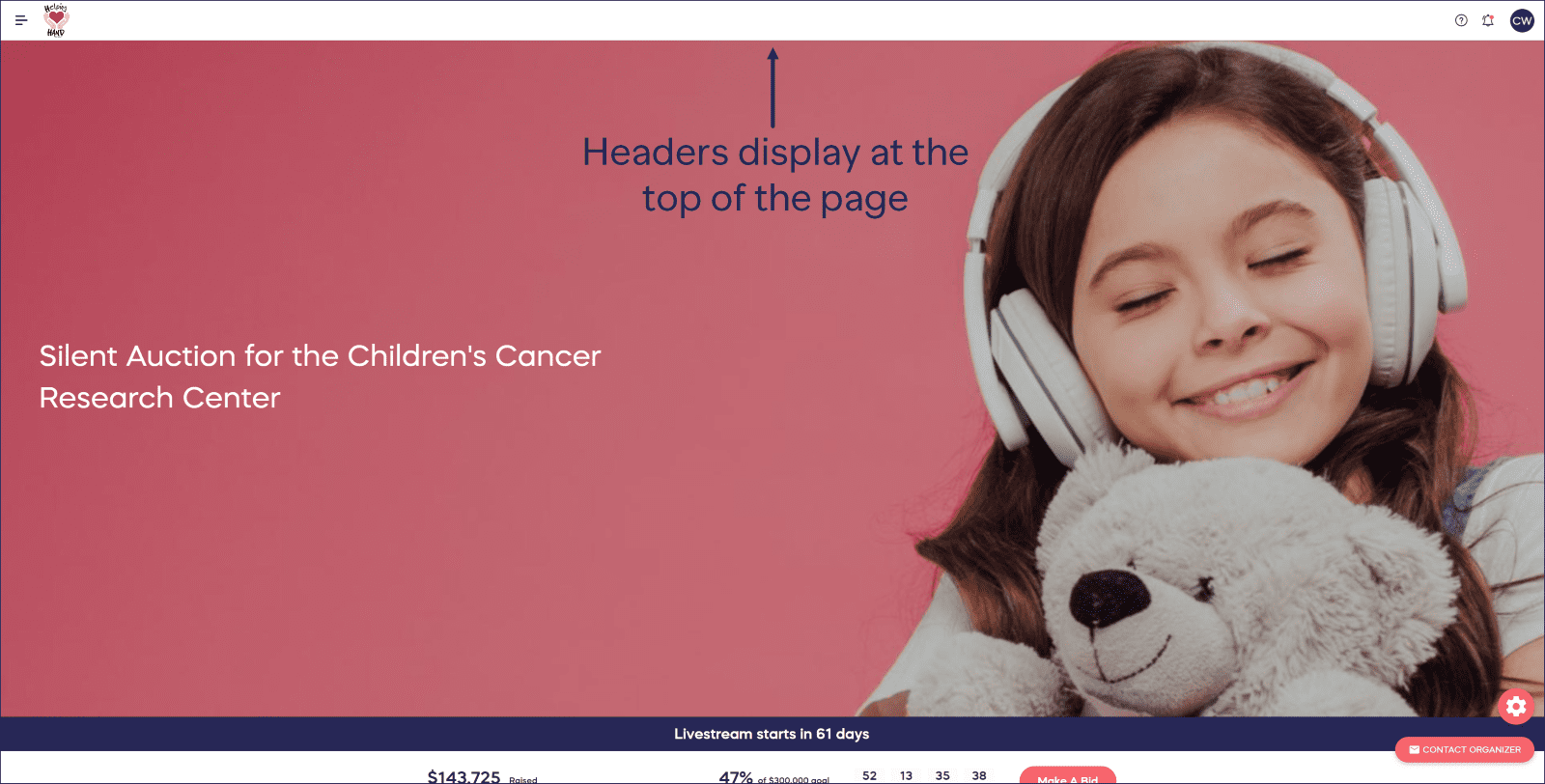
All RallyUp users can customize their Campaign Page header. The header is a small strip that displays at the top of all Campaign Pages under your account, which you can personalize with your organization logo and colors:
How do I find header settings in RallyUp?
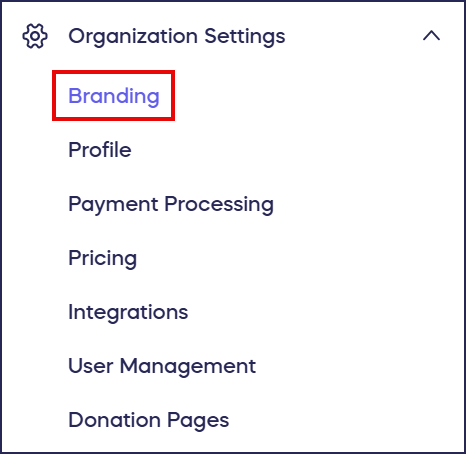
- Go to Organization Settings in the left menu and select Branding:
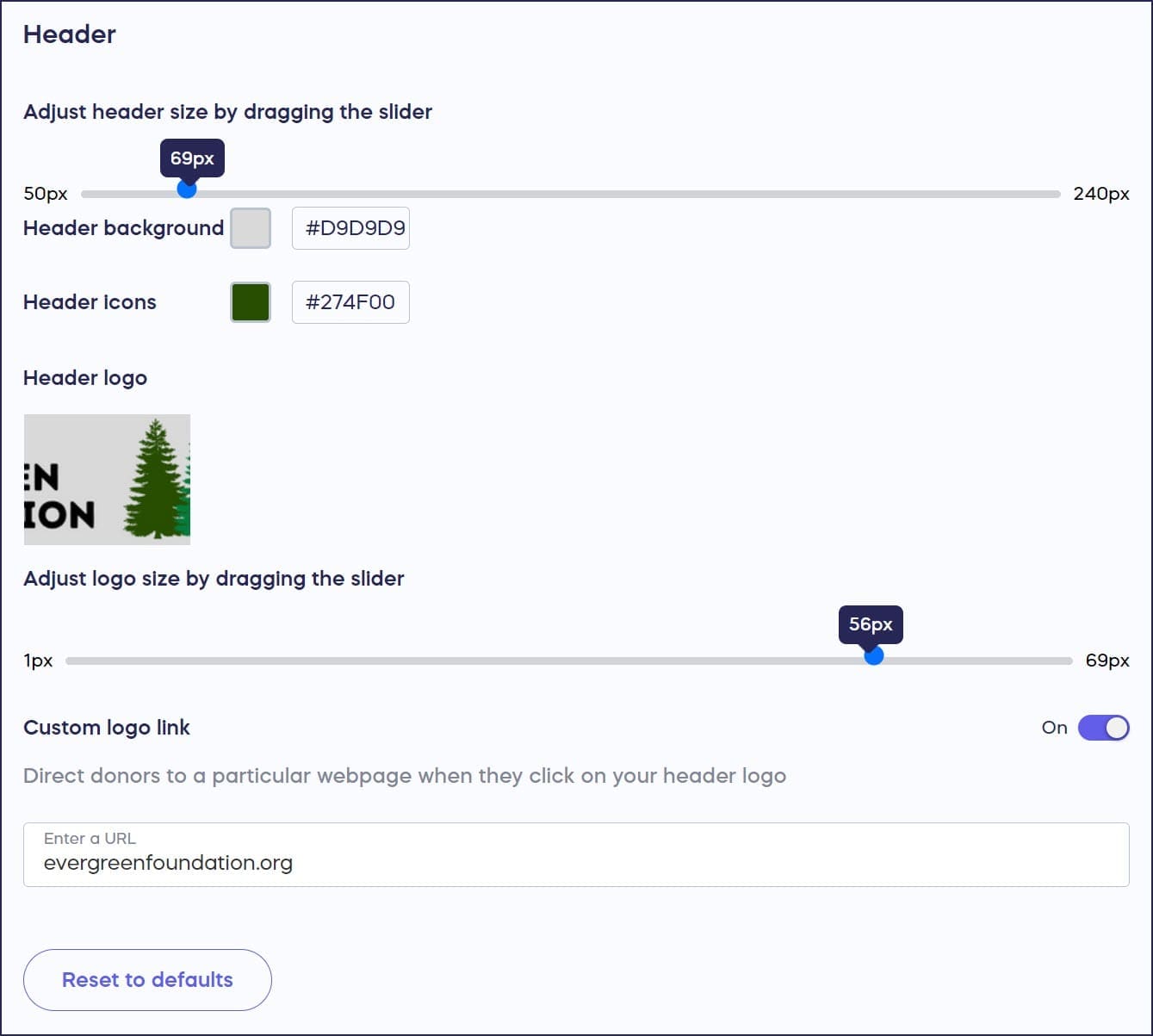
- Scroll down to the Header section:
- When you’ve made all desired updates, select Save at the bottom of the page.
How do I change my header size?
- Scroll down to Adjust header size by dragging the slider.
- Drag left to make the header smaller, and drag right to make the header larger.
How do I change my header colors?
- Scroll down to Header background and Header icons.
- Customize your header background and icon colors by entering the hex code. If you don’t know the hex code you want, you can manually select a color by clicking on the color square:

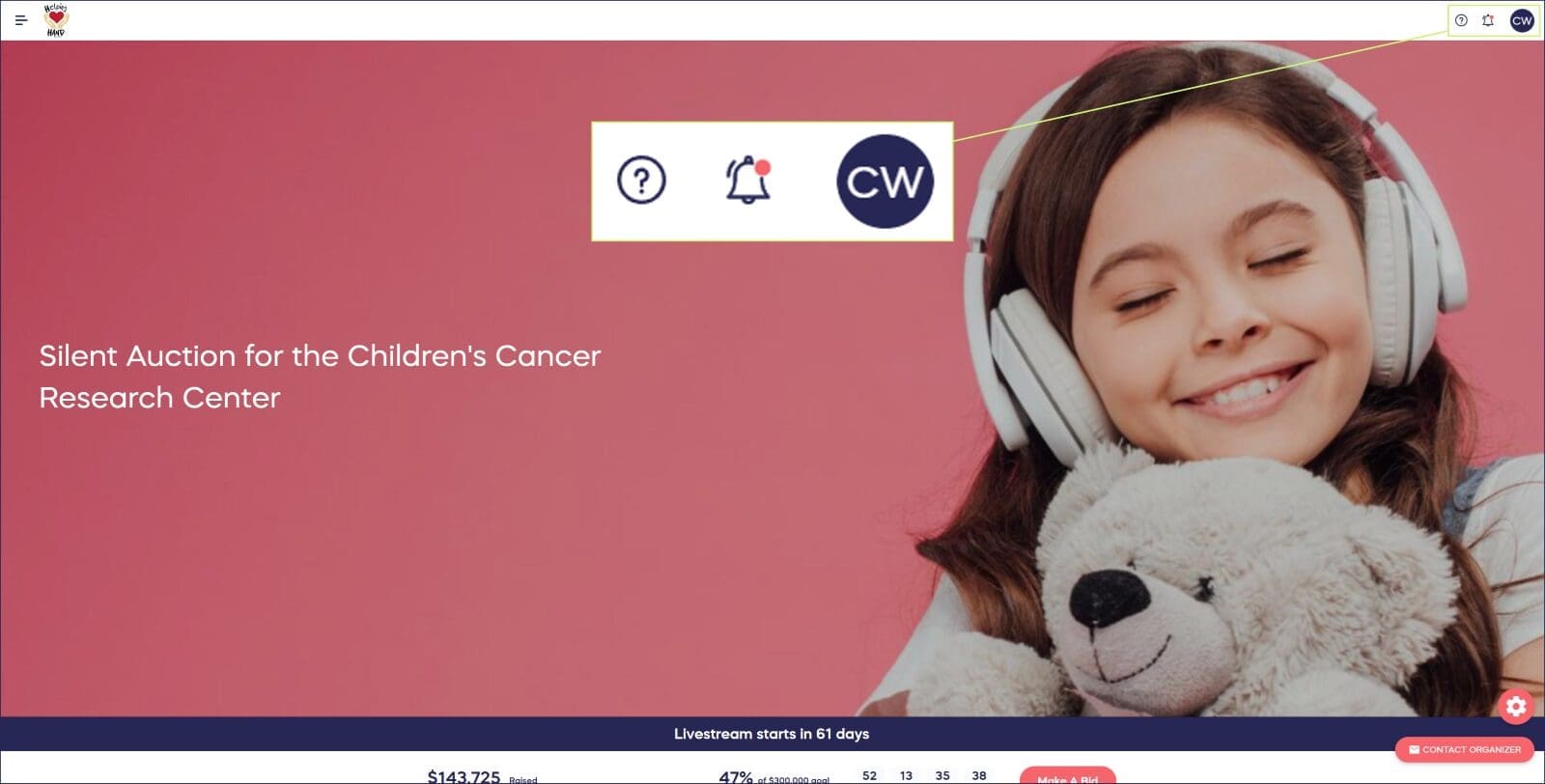
Your header icons will appear on the right side of the screen:
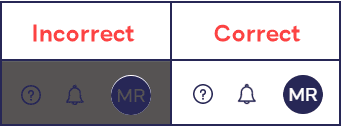
Tip: Make sure your icon colors stand out well against your background colors. The image below shows a header on which icon colors don’t stand out and one on which they do:
How do I add my organization logo to the header?
- Scroll down to Header logo.
- Upload your header logo image and adjust the size by dragging the slider. Dragging left will make the image smaller, and dragging right will make the image larger.
- If you like, add a logo link. Donors can then click on the logo image to access the link.
The header logo image will appear on the left side of the screen:

Frequently Asked Questions
What is the Campaign Page header?
The Campaign Page header is a small strip that displays at the top of all Campaign Pages under your account. You can personalize it with your organization logo, custom colors, and adjust its size to match your brand.
Can I customize the header for all my Campaigns at once?
Yes, header customization is an account-level setting. Once you customize your header in Settings > Branding, it will automatically appear at the top of all Campaign Pages under your account.
What can I customize in my header?
You can customize the header size, background color, icon colors, and add your organization logo. You can also add a clickable link to your logo that redirects donors to your website or another destination.
Do I need to know hex codes to change header colors?
No, you don’t need to know hex codes. While you can enter a hex code if you know it, you can also manually select colors by clicking on the color square to choose from a color picker.
Why should my icon colors stand out against the background?
Icon colors need to be visible against your background color for usability. If your icons don’t contrast well with the background, donors may have difficulty seeing and clicking important navigation elements in your header.