Give donors easy access to your Auction items with QR codes.
QR codes make it easy for donors to access your Auction items. When they scan the QR code with the cameras on their mobile device, they’ll be taken directly to the Auction item they’re interested in.
How-to: Use QR Codes to Promote Your Fundraisers
How do I create QR codes for Auction items?
- Go to Account Navigation in the left menu and select Campaigns.
- If you have chosen a list view, click on the Campaign title. If you have chosen a grid view, click on the Campaign image.
- Select Campaign Setup.
- Go to Auction in the timeline at the top.
Your next steps will depend on how many Auction item QR codes you want to create:
How do I create a QR code for a single Auction item?
- Scroll down to Add auction items and either select the item in question or select Create an item:

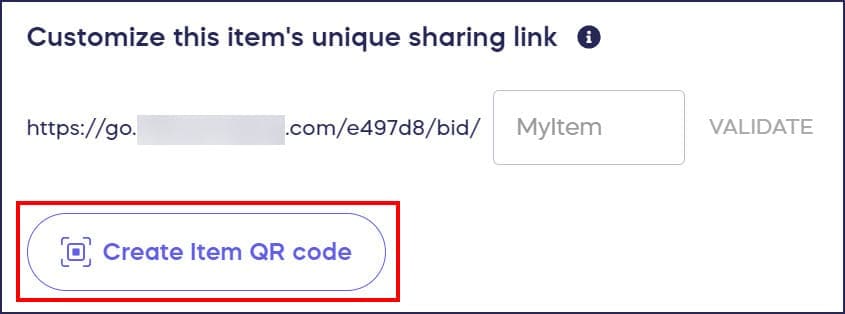
- Select Create Item QR code. The code will generate automatically in a small window:
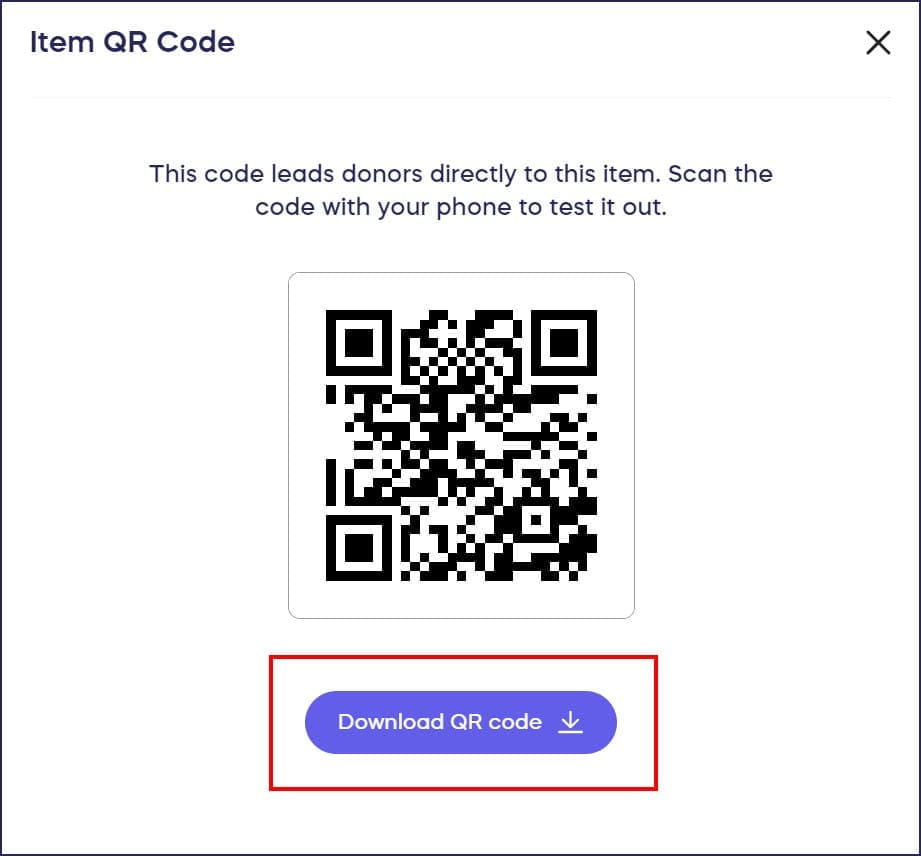
- Download the QR code. The QR code will be formatted as an image file (.png).
- Insert your Auction item QR code into your promotional material, web pages, or other documents the same way you would insert an image. Donors who scan the code with their phones will be taken directly to the Auction item.
How do I create QR codes for multiple items at once?
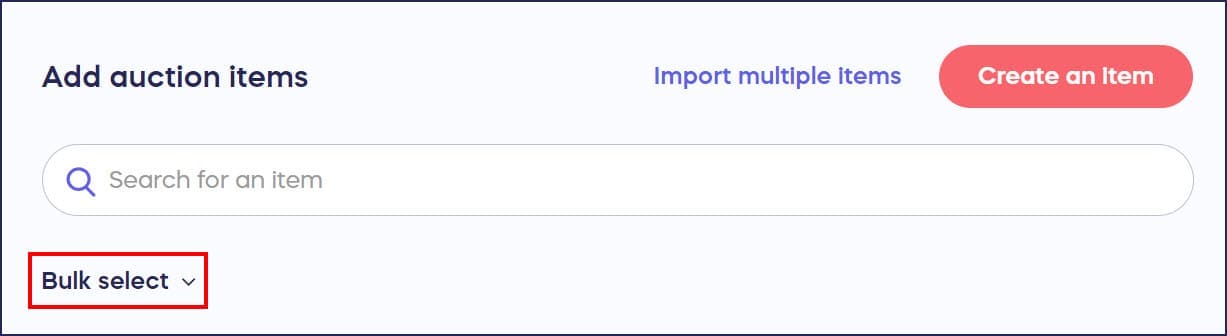
- Scroll down to Add auction items and click on Bulk select:
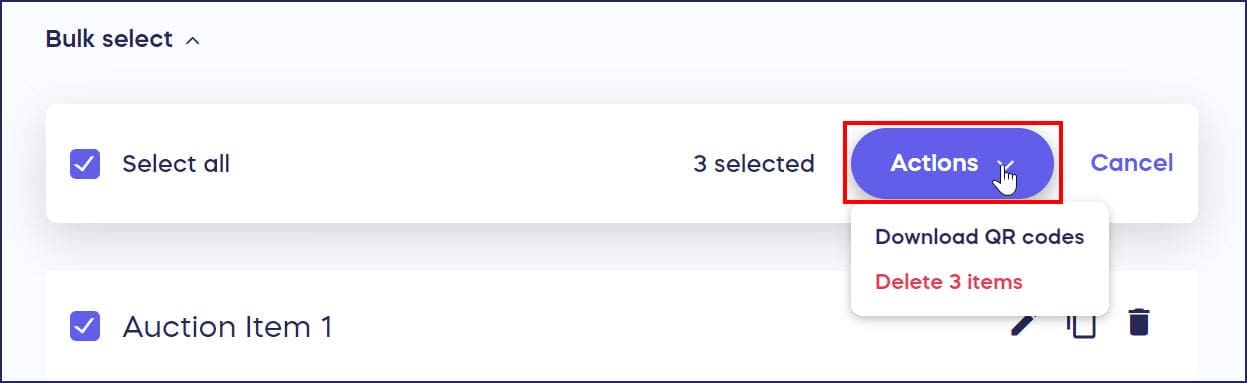
- Click on Select all to create QR codes for all items. Click on individual items to select them if you only want to create QR codes for certain items:

- Click on the Actions button to the right of Select all. A menu will appear:
- Select Download QR codes. This will make a small window appear:

- Once all QR codes are created, you’ll receive an email. Open the email and select Download File. The QR codes will download as a .zip file.

- Insert your Auction item QR codes into your promotional material, web pages, or other documents the same way you would insert an image. Donors who scan a code with their phones will be taken directly to the Auction item.
Frequently Asked Questions
What are QR codes and how do they work for Auction items?
QR codes are scannable images that donors can scan with their mobile device cameras to be taken directly to a specific Auction item, making it easy for them to view details and place bids without searching.
What file format are Auction item QR codes downloaded in?
Individual QR codes download as .png image files, while bulk QR code downloads come as a .zip file containing multiple .png files, one for each selected Auction item.
Can I create QR codes for items after my Auction is already live?
Yes, you can create QR codes for Auction items at any time, whether your Campaign is in Draft Mode, actively running, or even after it has ended.
How do I use QR codes for my Auction items?
Insert the QR code images into promotional materials, print them on table tents at your event, add them to flyers, include them in emails, or display them on screens where donors can easily scan them with their phones.
Do I need to create QR codes one at a time?
No, you can use the bulk select feature to create QR codes for multiple Auction items simultaneously. You can select all items or choose specific items to generate QR codes in one batch.