Check in attendees or Participants for your in-person event or A-Thon.
Whether you’re running a gala, jog-a-thon, conference, or other in-person fundraiser, it’s easy to check in attendees or Participants from your RallyUp account. Marking people as checked in when they arrive can help you manage attendance and keep accurate reports.
If you’re running an A-Thon or Peer-to-Peer fundraiser, you can check in Participants manually. If you’re running a Ticketed event, you can check in attendees manually or enable QR code check-in.
Terminology such as “Tickets” or “Participants” may differ according to Campaign settings.
How do I manually check in attendees or Participants?
- Go to Account Navigation in the left menu and select Campaigns.
- If you have chosen a list view, click on the Campaign title. If you have chosen a grid view, click on the Campaign image.
- To check in event attendees, select View Ticket Registrations. To check in A-Thon or Peer-to-Peer participants, select View Participants.
- Type the person’s name into the search bar.
- Click on the three-dot menu on the right and select Mark as checked in:
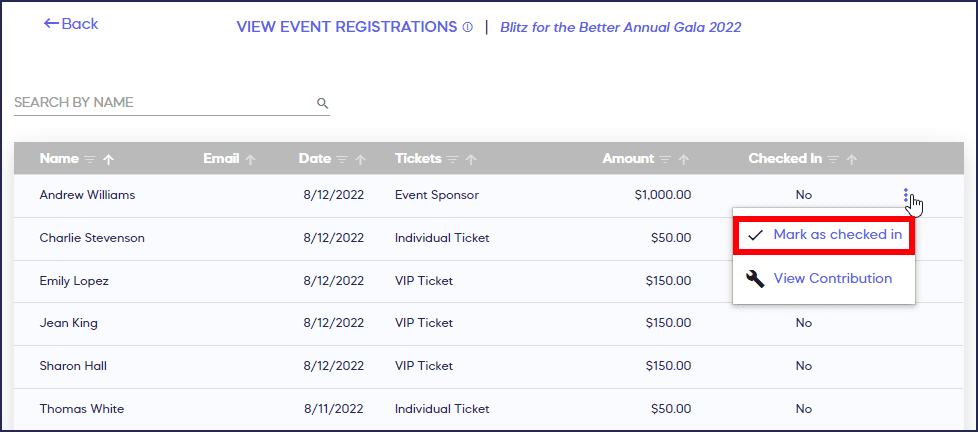
You can see which attendees are checked in by looking at the Checked In column in the table. You can also export a spreadsheet of all attendee data.
How does QR code check-in work?
QR code check-in is currently only available for Ticketed events. You’ll need to enable QR code check-in when you set up your Campaign to use it during your event.
How do I enable QR code check-in?
- Go to Account Navigation in the left menu and select Campaigns.
- If you have chosen a list view, click on the Campaign title. If you have chosen a grid view, click on the Campaign image.
- Select Campaign Setup.
- Go to Ticketing in the timeline at the top.
- Scroll down to Optional settings and select Show optional settings.
- Scroll down to Enable QR code check-in and click on the toggle to move it to the right:

- Select Save.
What do attendees see when they receive their QR code?
When donors purchase Tickets, their QR code(s) will be included in their registration email:

You can enable QR code check-in anytime, even if your Campaign is already live. Please note, however, that anyone who purchased event Tickets before you enable this setting won’t have a QR code. In this case, you’ll need to resend the registration emails for each purchase.
How do I resend a QR code to an attendee?
If an attendee purchased a Ticket before QR code check-in was enabled, or if they lost their QR code, you can easily resend it anytime.
- Go to Account Navigation in the left menu and select Campaigns.
- If you have chosen a list view, click on the Campaign title. If you have chosen a grid view, click on the Campaign image.
- Select View Ticket Registrations.
- Type the person’s name into the search bar.
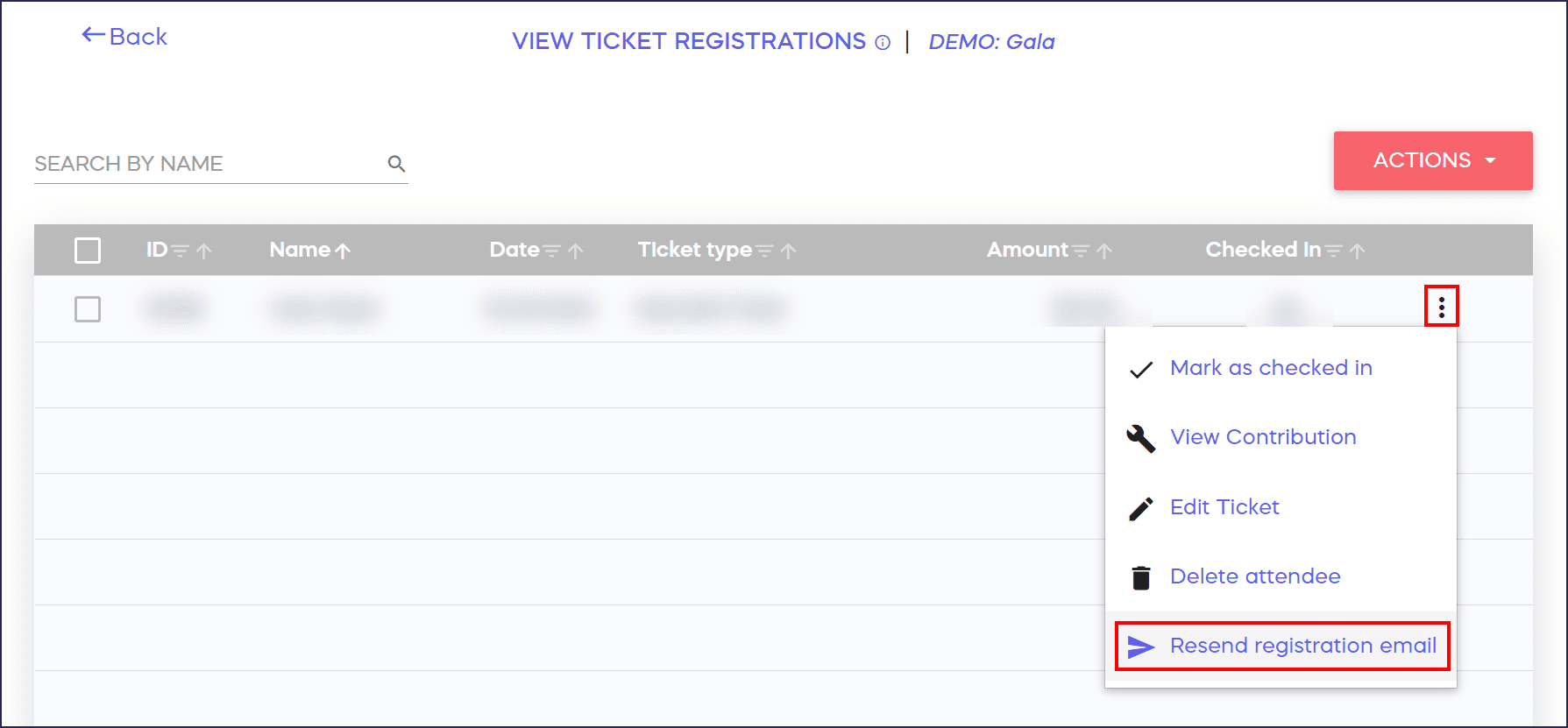
- Click on the three-dot menu on the right and select Resend registration email:
How do I scan a QR code to check in attendees?
To use QR code check-in, you’ll need a device with a built-in camera, such as a cell phone or tablet.
- Go to Campaign Settings in the left menu and select your Campaign from the drop-down menu.
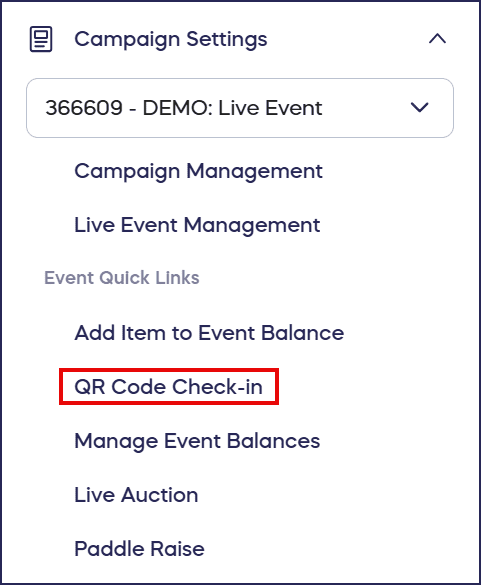
- Select QR Code Check-in:
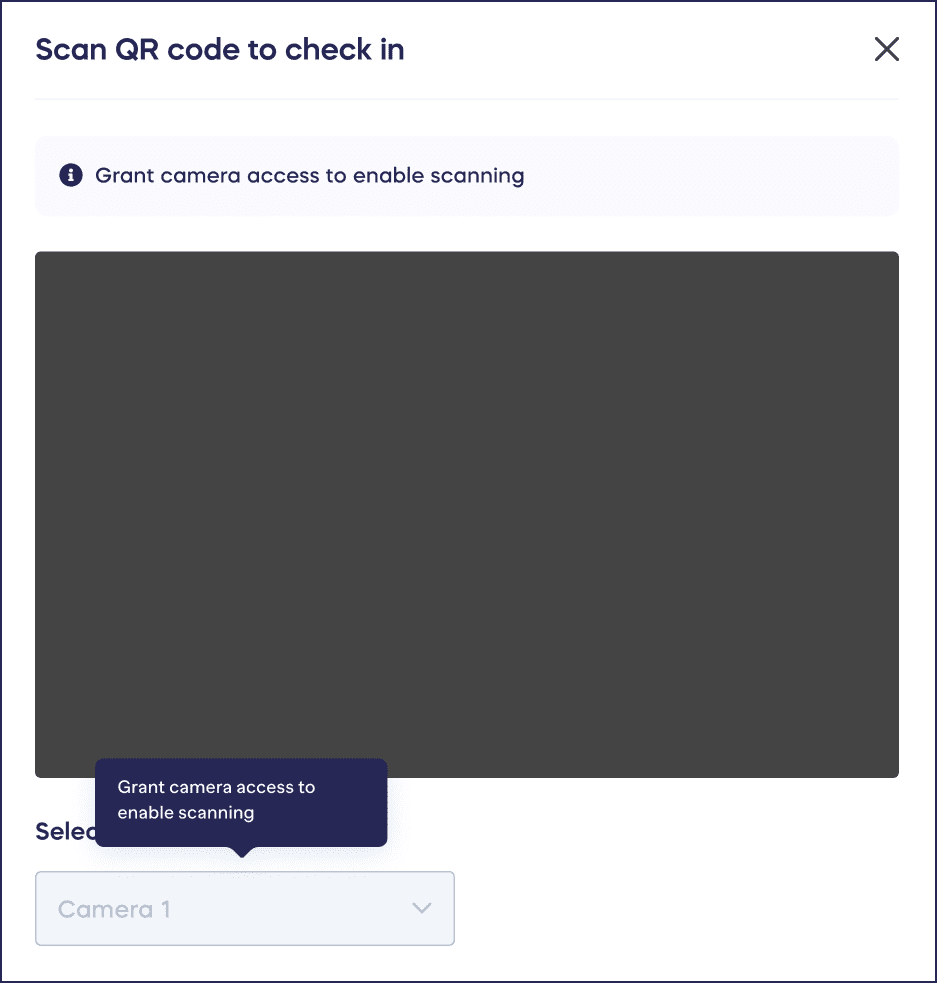
- Select the camera you want to use and, if necessary, grant permission for RallyUp to access the camera:
- Scan a QR code to check in an attendee. When they’re checked in, select Scan another QR code:

Does checking in attendees affect payments or donations?
Marking an attendee or Participant as checked in helps with reporting and management but does not affect payments or donations.
Frequently Asked Questions
Can I check in Participants for A-Thon or Peer-to-Peer Campaigns?
Yes, you can manually check in A-Thon or Peer-to-Peer Participants by going to View Participants in Campaign Management, searching for their name, and selecting “Mark as checked in” from the three-dot menu.
Is QR code check-in available for all Campaign types?
No, QR code check-in is currently only available for Ticketing & Registration Campaigns. For A-Thon or Peer-to-Peer Campaigns, you’ll need to use manual check-in.
Can I enable QR code check-in after my event has already started selling tickets?
Yes, you can enable QR code check-in anytime, even if your Campaign is already live. However, attendees who purchased Tickets before you enabled this feature won’t have a QR code and will need to have their registration email resent.
What device do I need to scan QR codes at my event?
You’ll need any device with a built-in camera, such as a smartphone or tablet. You’ll also need to grant RallyUp permission to access the camera.
What happens if an attendee loses their QR code?
You can easily resend the registration email containing their QR code by going to View Ticket Registrations in Campaign Management, finding their name, and selecting “Resend registration email” from the three-dot menu.
Will checking in attendees change their payment or donation status?
No, marking an attendee or Participant as checked in is only for reporting and attendance management purposes. It does not affect payments or donations.