Choose or upload a virtual background for your Livestream video.
Applying a virtual background to your Livestream can help your content look more appealing to viewers. RallyUp lets you upload your own background image or choose from several preset options.
Why would I use a virtual background for my Livestream?
Using a virtual background for your Livestream can help your content look more appealing and professional to viewers. Virtual backgrounds allow you to control what appears behind you during your broadcast, whether you want to display your organization’s branding, create a consistent visual experience, or simply present a cleaner, more polished appearance. RallyUp makes it easy by letting you either upload your own custom background image or choose from several preset options.
How do I add a background to my Livestream video feed?
- Go to Account Navigation in the left menu and select Campaigns.
- If you have chosen a list view, click on the Campaign title. If you have chosen a grid view, click on the Campaign image.
- Select Livestream Studio.
- Below Entering the Stage, select the gear icon:
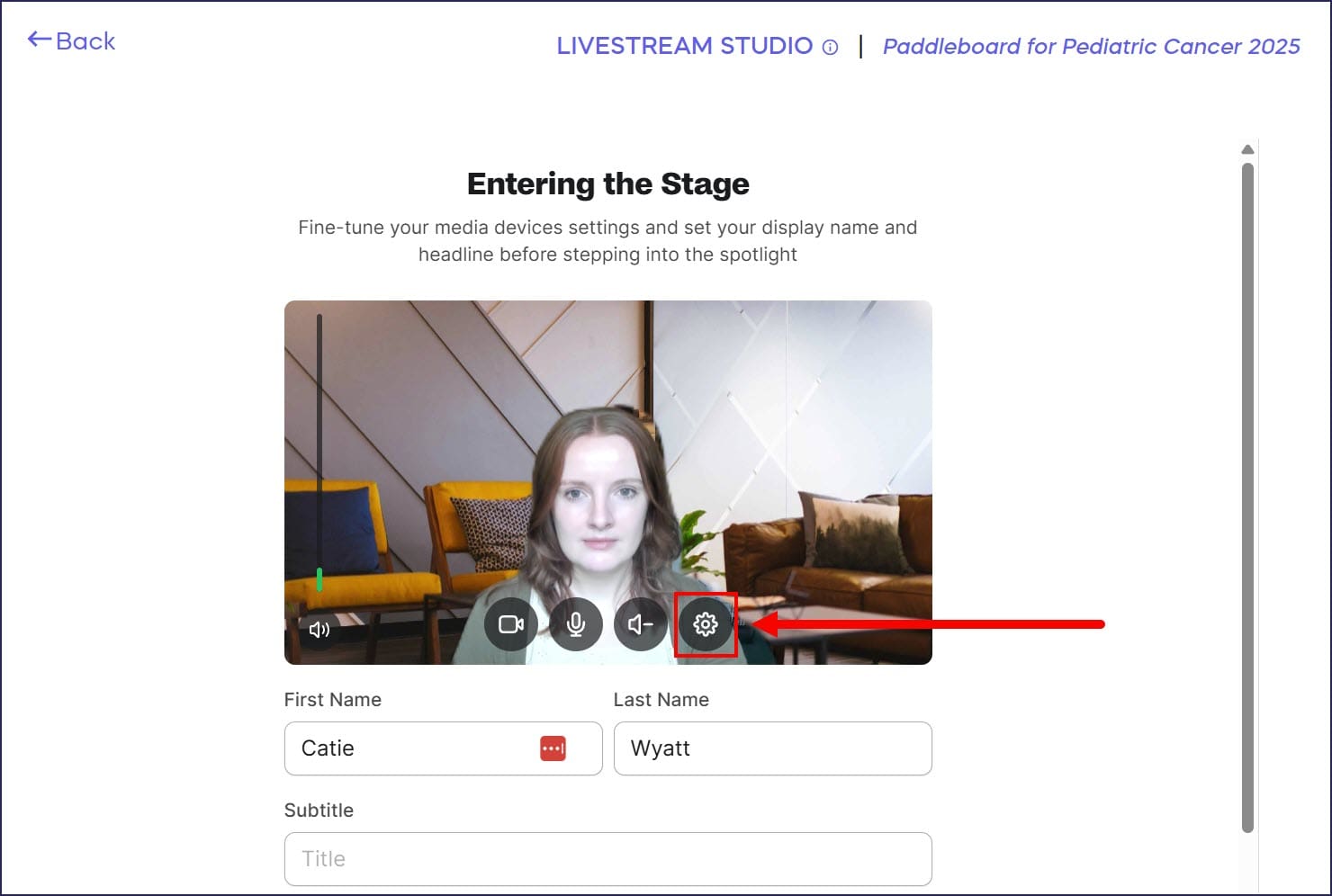
- Select Background Effects from the left menu:
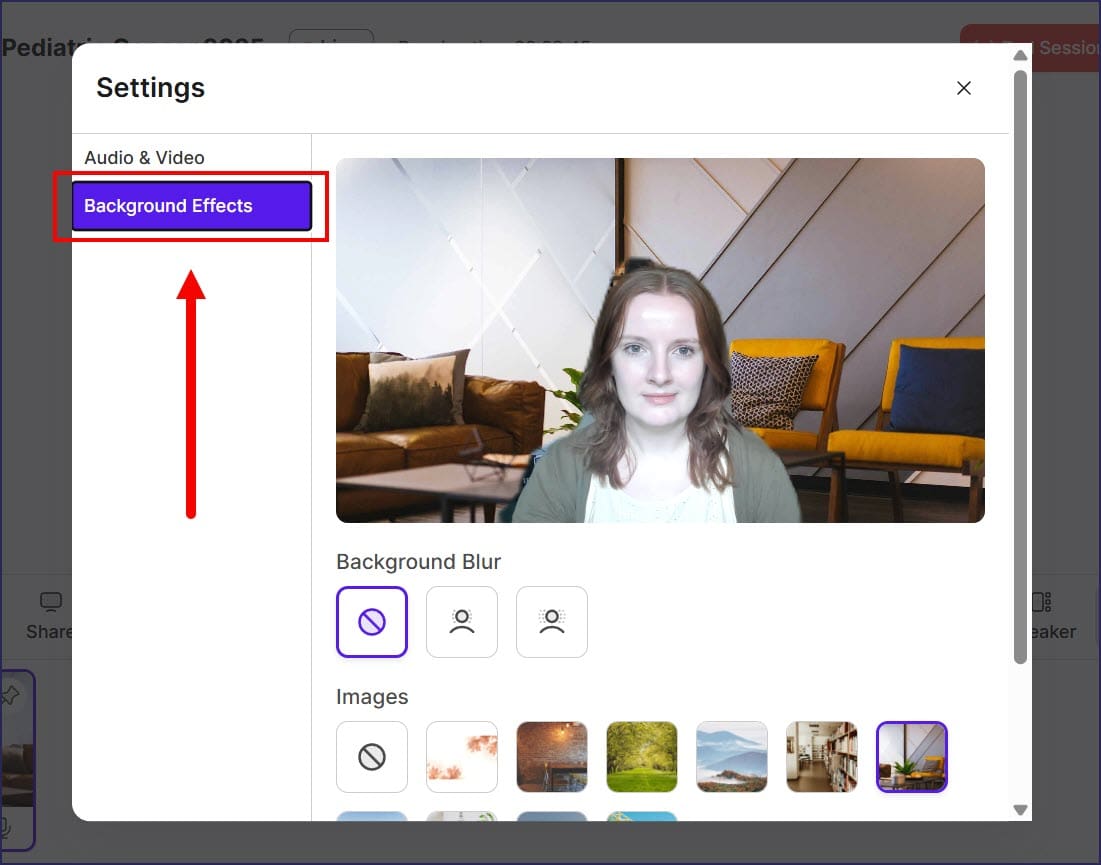
- Choose from the standard background options or select Upload custom background to upload a custom image:
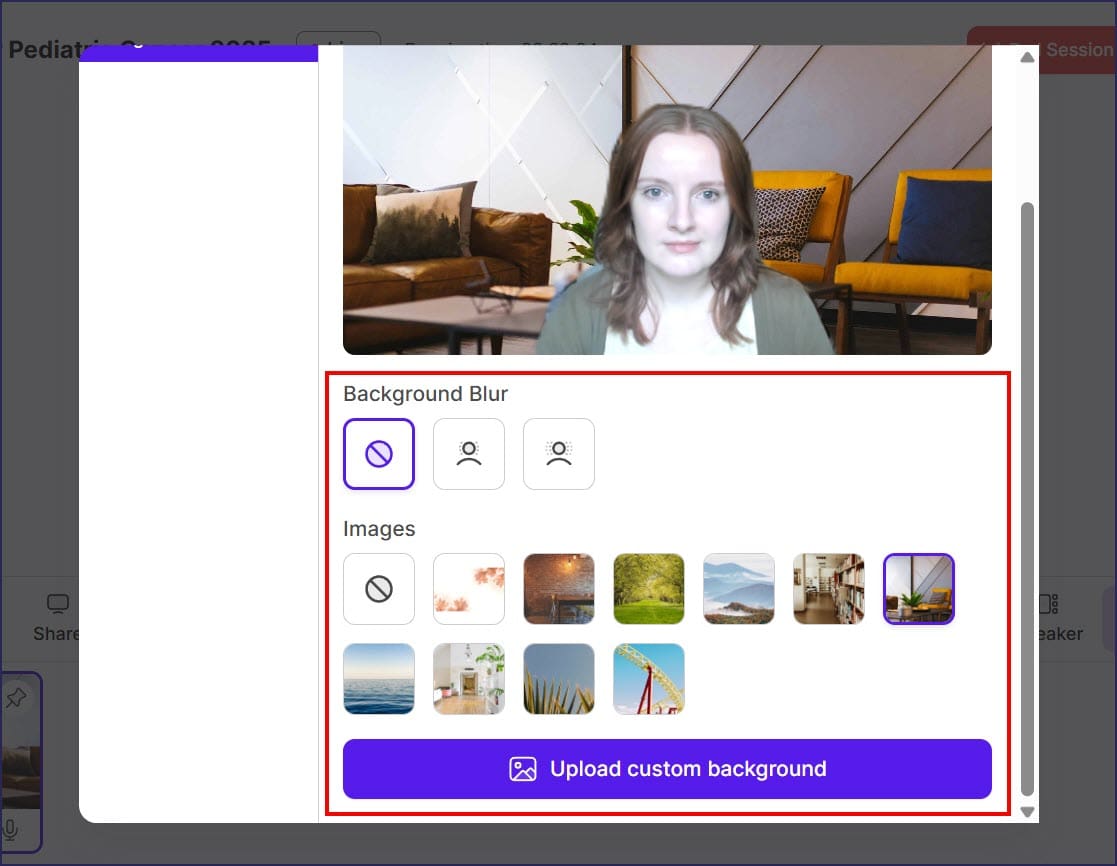
- The new background should apply automatically.
How do I change or remove my Livestream background?
- Below the Livestream video feed, select Settings:
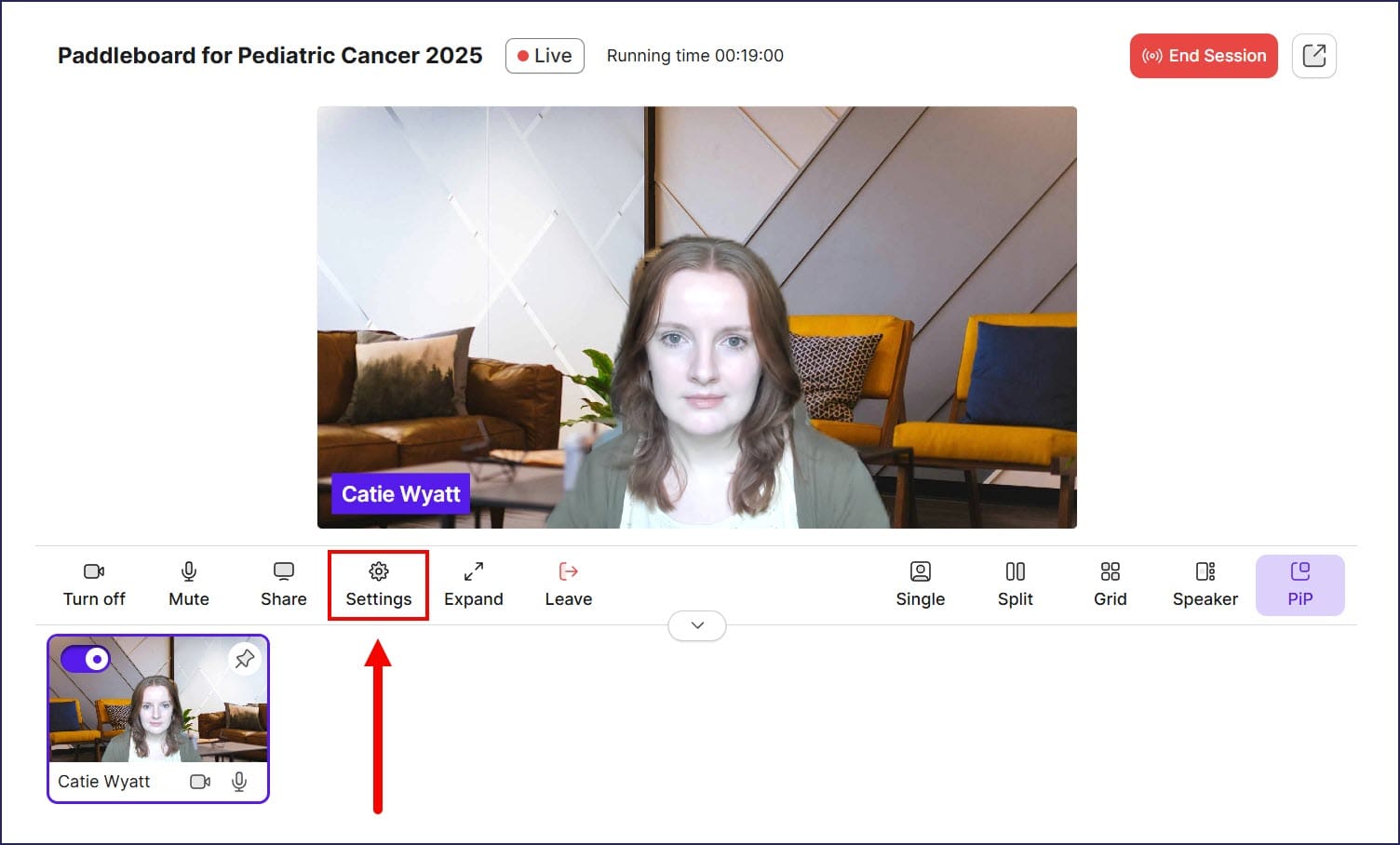
- Select Background Effects from the left menu:
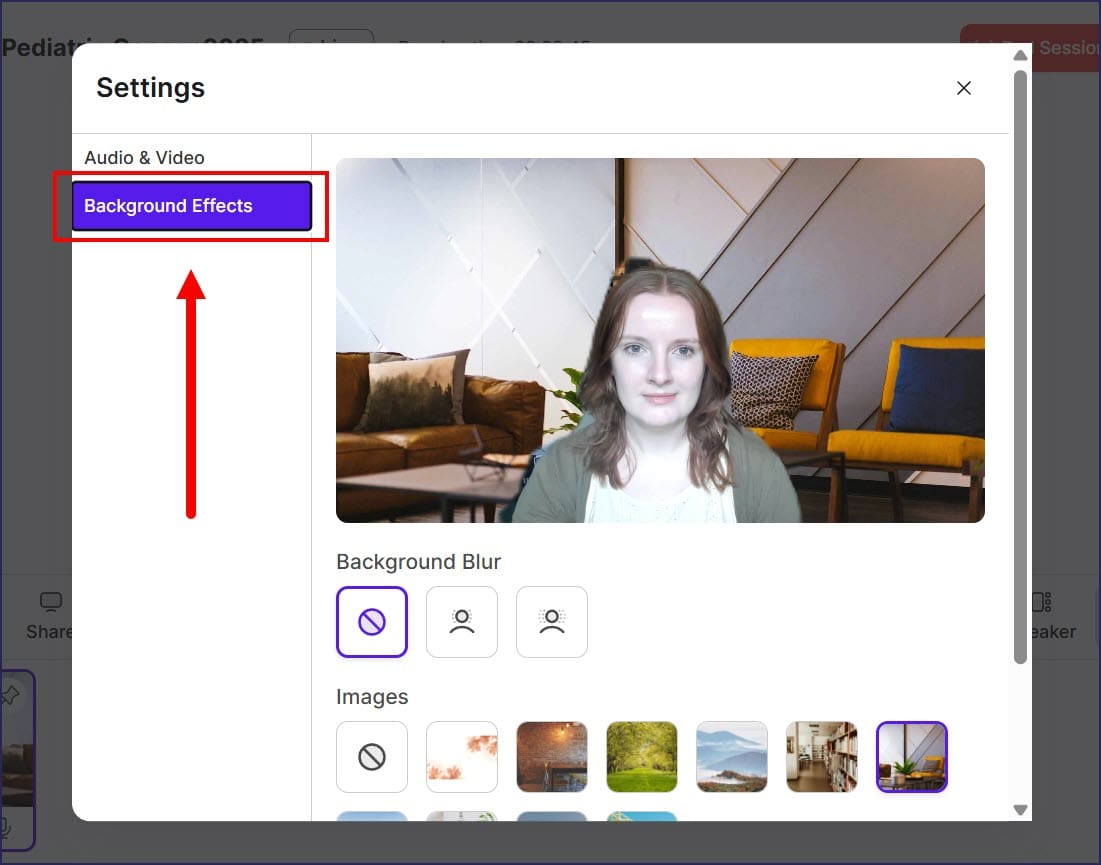
- To change your background, choose from the standard background options or select Upload custom background to upload a custom image. To remove your background, select None:
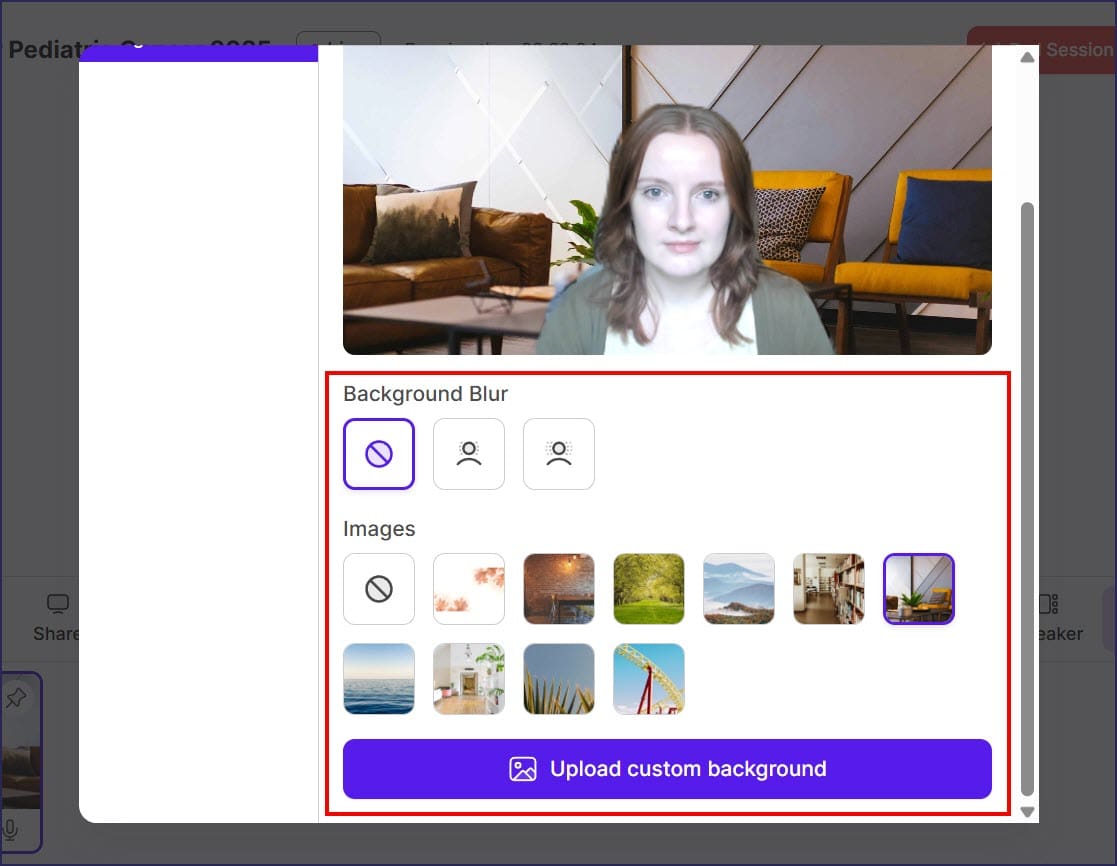
- Your changes should apply automatically.
Frequently Asked Questions
What is a virtual background?
A virtual background is an image that appears behind you during your Livestream video, replacing your actual physical background. This feature allows you to control the visual environment of your broadcast, helping you create a more professional and appealing presentation for viewers. You can use virtual backgrounds to display your organization’s branding, maintain consistency across multiple broadcasts, or simply present a cleaner appearance. To learn more about turning your fundraiser into a live virtual event, see this article: Insights: Turn Your Fundraiser into a Live Virtual Event.
Can I upload my own custom background image?
Yes, you can upload your own custom background image for your Livestream. When selecting your background in the Background Effects menu, choose “Upload custom background” to upload a custom image of your choice. This allows you to use your organization’s branded imagery, logos, or any other visual that fits your fundraising event.
What background options does RallyUp provide?
RallyUp provides several standard background options that you can choose from in the Background Effects menu. If these preset options don’t meet your needs, you also have the flexibility to upload your own custom background image. This gives you complete control over the visual presentation of your Livestream, whether you prefer convenience with preset options or customization with your own imagery.
Why does my background appear mirrored in the preview?
The background you choose will be mirrored in the preview window, but the image will display correctly for everyone watching the Livestream. This is normal behavior for video preview displays and won’t affect how your viewers see the background. Your audience will see the background image in its proper orientation.
Can I remove my virtual background after adding one?
Yes, you can easily remove your virtual background at any time. Simply access the Background Effects menu from the Settings button below your Livestream video feed, and select “None” to remove your current background. This will return your Livestream to showing your actual physical background. You can add, change, or remove backgrounds as needed throughout your broadcast. If you’re new to Livestreaming, learn how to get started with this article: How-to: Add Livestreaming to Your Fundraiser.