Learn the basics of starting and ending a Livestream.
When you Livestream, you’ll be able to connect directly with your supporters and create opportunities for them to connect with one another. You can easily start or end your Livestream in three simple steps.
What technical requirements do I need for Livestreaming?
- Hosts and presenters must join the Livestream on a desktop or laptop. You won’t be able to host or present on a mobile or tablet device.
- We encourage all hosts, presenters, and attendees to access and view the Livestream using Chrome.
- Internet Explorer does not support Livestreaming, and some users are unable to hear or be heard when using Safari.
How do I start my Livestream?
There are three steps to starting a Livestream.
- Enter Stage
- Start Stream Mode
- Go Live
1. What happens when I enter the stage?
When you first enter the Livestream Studio, you’ll be able to enter your name and title and check your audio and video settings:

Use the toggle to move yourself or other presenters on or offstage:

2. What does starting stream mode do?
When you select Start stream mode, the appearance of your fundraising page will change from standard mode to Livestream mode:

We recommend starting stream mode 30-60 minutes before your Livestream and sending an email to donors letting them know that your Livestream is about to start:
How-to: Notify Your Virtual Audience before Starting a Livestream
The audience will not be able to see or hear you until you go live:

3. What happens when I go live?
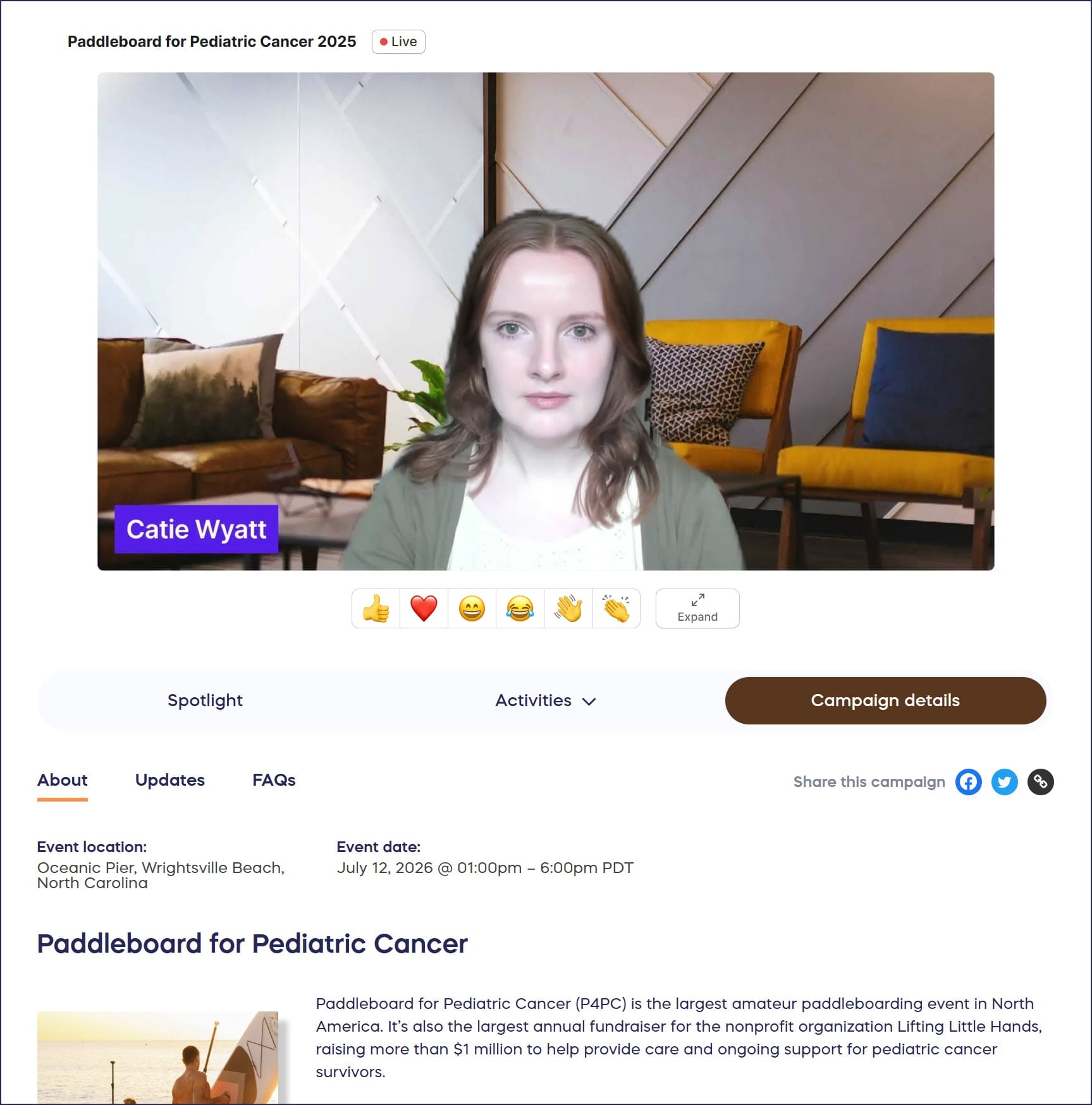
Selecting Go Live starts the Livestream:

After a few seconds, your audience members will see and hear whoever is onstage:
How do I end my Livestream?
There are three steps to ending a Livestream:
- End Session
- End Stream Mode
- Leave Stage
1. What does ending the session do?
The End Session button will end the Livestream but will not remove the Livestream window from your Campaign Page:

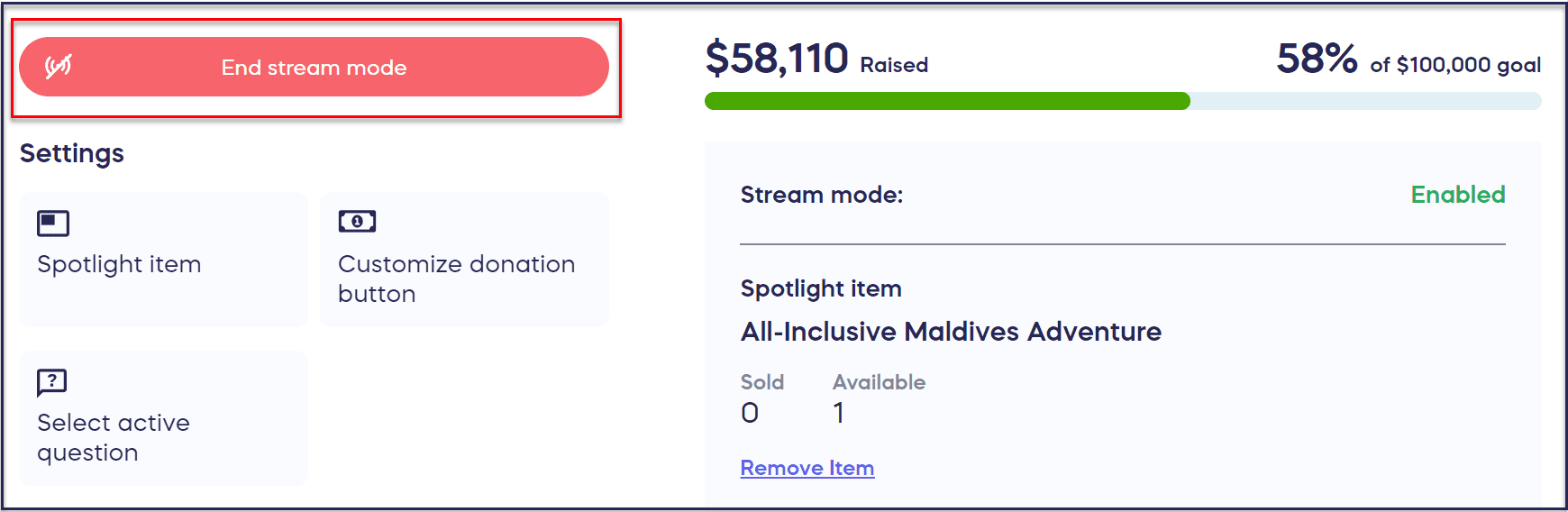
2. What happens when I end stream mode?
End stream mode will return your Campaign Page to its original look without the Livestream window:
3. How do I leave the Livestream stage?
The Leave button removes you from the Livestream:
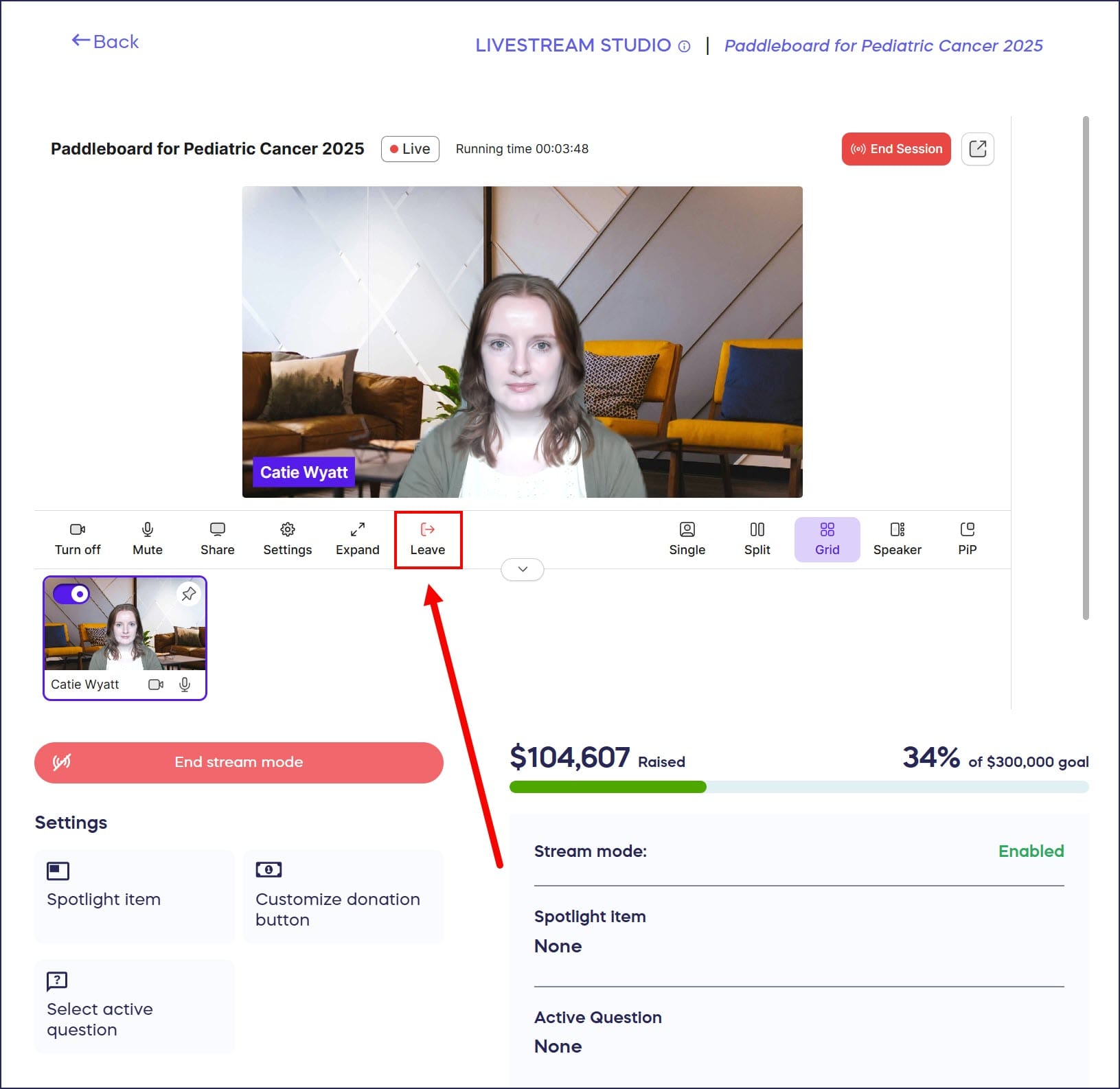
If a presenter accidentally selects the Leave button, they can select the Return to Event button to rejoin the Livestream:

How do I get help with my Livestream?
If you need support, click on the Need Livestreaming Help? button for further instructions or to speak to a live support expert:

Frequently Asked Questions
Can I host a Livestream from my mobile device or tablet?
No, hosts and presenters must join the Livestream from a desktop or laptop computer. Mobile and tablet devices are not supported for hosting or presenting, though audience members can view Livestreams on any device.
What browser should I use for Livestreaming?
We encourage all hosts, presenters, and attendees to use Chrome for the best Livestreaming experience. Internet Explorer does not support Livestreaming, and some users experience audio issues when using Safari.
When should I start stream mode before going live?
We recommend starting stream mode 30-60 minutes before your Livestream begins. This gives you time to send notification emails to donors letting them know your Livestream is about to start, though they won’t see or hear you until you select Go Live.
What’s the difference between ending session and ending stream mode?
End Session stops the Livestream but keeps the Livestream window visible on your Campaign Page. End Stream Mode removes the Livestream window entirely and returns your Campaign Page to its original appearance.
What happens if a presenter accidentally leaves the Livestream?
If a presenter accidentally selects the Leave button, they can easily rejoin by selecting the Return to Event button. This allows them to get back on stage without disrupting the Livestream.